


Building a PC is an exciting journey, but it often comes with questions, especially about the order of assembling components. One of the most debated topics among builders is whether to install the motherboard into the case first or to mount the CPU before making that decision. Understanding the most effective build order can save you time, prevent damage to your parts, and facilitate a smoother assembly process.
Whether you’re a first-time builder or an experienced enthusiast, knowing the best practices for component installation can boost your confidence. This guide breaks down the advantages of different assembly methods, helping you make informed decisions that align with your specific setup. So let’s dive in, demystify the process, and ensure your PC build is not only successful but also enjoyable!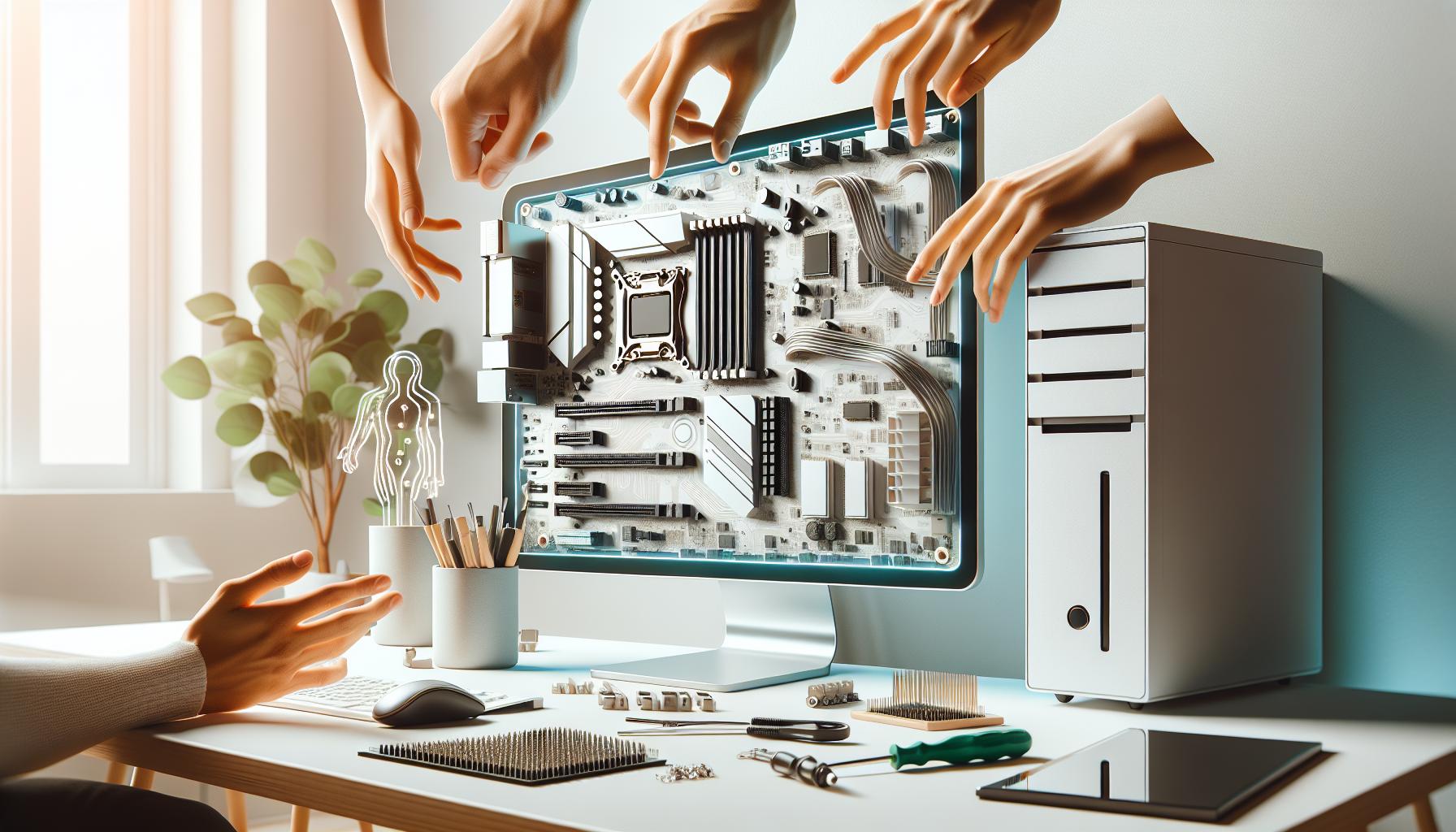
Choosing Between Motherboard and CPU Installation First
When embarking on the journey of building a PC, one of the fundamental decisions you’ll face is choosing whether to install the motherboard or the CPU first. This choice isn’t just a matter of preference; it can significantly impact the ease of the overall installation process and the functionality of your build. Understanding the nuances of both methods can help you create a smooth workflow and avoid potential pitfalls.
Starting with the motherboard installation has its advantages. By securing the motherboard in the case first, you create a stable platform to work from. With the motherboard firmly in place, you can install components like the CPU and RAM without worrying about the board shifting or being damaged. Additionally, mounting the motherboard allows for easier access to various ports and connectors that may be obstructed when the CPU is installed. This is particularly relevant for cases that have limited space, as the intricacies of cable management and component accessibility can make a significant difference in your build experience.
On the flip side, installing the CPU first can also offer its benefits. This approach minimizes the risk of bending CPU pins and allows for better visibility when aligning the processor with the socket on the motherboard. If your case is relatively cramped, this method can facilitate a more straightforward installation, especially when securing the CPU cooler afterward. Regardless of the chosen sequence, keeping a methodical approach is crucial; securing your components with care will save you from troubleshooting headaches later.
Ultimately, the choice between installing the motherboard or CPU first boils down to personal preference and the specific case you are working with. Each method has its set of advantages that can cater to different styles of building, whether you prioritize ease of access or component protection. By staying organized and being mindful of your workspace, you’ll set a solid foundation for further steps in your PC-building journey.
Essential Tools for a Successful PC Build
Building a PC can be an exhilarating project, but to embark on this journey successfully, the right tools are essential. Without the proper equipment, even the most experienced builders can find themselves frustrated or hitting roadblocks. In essence, having the right tools not only streamlines your building process but also enhances the overall experience.
A good starting point is a quality screwdriver, preferably a magnetic one. This tool will quickly become your best friend as you navigate the screws of various components like the motherboard and power supply. Additionally, a set of anti-static wrist straps should be on your list. These prevent static electricity from damaging sensitive components, ensuring that you can handle all parts safely. Similarly, a mix of zip ties and cable management solutions is invaluable. Keeping cables tidy not only improves airflow in your case but also makes future upgrades and troubleshooting significantly easier.
Don’t forget about the utility of small containers or trays for organizing screws and components. Mixing up tiny screws can lead to confusion later on, so having these sorted can save time. Moreover, a good flashlight or work light can illuminate the often dimly lit areas inside your case, making it easier to see where you’re working. Lastly, referencing manuals for your specific motherboard and CPU during the installation process will provide you with essential guidelines and compatibility information to avoid common pitfalls.
By being prepared with these tools, you will empower yourself to tackle your PC build with confidence. Remember, a well-equipped workspace fosters creativity and ensures that every step of the building process is as smooth as possible.
Benefits of Installing Motherboard First
Installing the motherboard first can be a game-changer for your PC building experience. Not only does it provide a sturdy foundation for securing other components, it also simplifies the overall assembly process. When the motherboard is in place before you tackle the CPU and cooler installations, you significantly reduce the risk of scratching sensitive components or misplacing screws in the cramped confines of a PC case. Having that broad, accessible surface allows you to efficiently access connectors and slots, ensuring that every piece gets the attention it deserves.
When tackling a motherboard installation, it’s wise to have a checklist to streamline the process. For example, installing the motherboard with the I/O shield already in place can save you considerable hassle later. Furthermore, once the motherboard is secured, installing RAM and a CPU cooler becomes easier, as you have more room to maneuver. This order not only helps maintain a tidy workspace but also allows for nearly all connections to be made without the constraints of the case’s layout.
The real benefit of this order becomes clear when considering potential complications. If the CPU were installed first, you might find it challenging to access the CPU cooler mounting points later on, especially in tighter cases. Moreover, by having the motherboard installed first, you can visually check and possibly troubleshoot any issues before adding more layers to your build. This proactive approach leads to fewer assembly errors and a smoother transition from build to boot.
Ultimately, starting with the motherboard is about fostering an efficient workflow and minimizing the potential for mistakes. By choosing this order, you’re setting yourself up for a more straightforward build process and can focus on bringing your vision of a custom PC to life with confidence and ease.
Advantages of Installing CPU First
Installing the CPU before the motherboard can sometimes lead to a smoother and more manageable assembly experience. For many builders, starting with the CPU simplifies the intricate process of securing the processor and applying thermal paste. By having the motherboard upside down, you gain easier access to the CPU socket. This positioning allows for a more comfortable alignment when placing the CPU into the socket, minimizing the risk of bending pins or damaging the delicate components.
Another significant benefit of this approach is that it allows you to efficiently install the cooler without the constraints posed by a restricted case environment. Mounting the CPU cooler can be a tricky task, especially in compact builds where space is limited. With the motherboard on a flat surface and the CPU already installed, you have room to maneuver the cooler without the worry of bumping into other components. This can also reduce the chances of thermal paste spills or improper installation, ensuring a better thermal connection right from the start.
Starting with the CPU also creates an opportunity for an initial quality check before proceeding with the installation of the motherboard. If there are any issues with the CPU or cooler installation, addressing them before placing the motherboard in the case can save you time and potential headaches. If everything has been successfully installed, you can then proceed to place the motherboard in the case with confidence, knowing that you’ve secured one of the most critical components correctly.
Lastly, for builders who prefer a clean, organized workflow, installing the CPU first can help create an assembly sequence that feels intuitive. It promotes a top-down building philosophy: securing the most critical components first and allowing for more controlled access as you move through the installation process. This method can also help in managing the building timeline more effectively, as it allows you to focus on securing each part strategically, leading to a more confident and streamlined build.
Common Mistakes to Avoid During Installation
Building your own PC can be incredibly rewarding, but even seasoned enthusiasts can stumble through common pitfalls during installation. Awareness of these mistakes will dramatically enhance your building experience and prevent potential damage to your precious components. It’s essential to approach each step with diligence and care.
One of the most prevalent mistakes is over-tightening screws. While it might seem like the more secure your components are, the better, excessive force can lead to stripped threads or cracked components. Always ensure your screws are snug but not excessively tight. A good rule of thumb is to stop tightening when you feel resistance without forcing it further.
Another frequent error involves neglecting static precautions. Static electricity can severely damage electronic components, so it’s crucial to utilize an anti-static wrist strap or regularly discharge any static by touching a grounded metal object. This might seem tedious, but preventing static discharge is far less inconvenient than replacing damaged hardware.
Proper cable management is also often overlooked during assembly. Messy or improperly routed cables can obstruct airflow and make future upgrades or maintenance more challenging. Try to route cables behind the motherboard tray or along the case edges to keep your build tidy. This approach not only enhances aesthetics but will also improve cooling efficiency by ensuring unobstructed airflow.
Finally, one of the biggest missteps can occur when skipping the user manual. Many builders dive in with enthusiasm but forget to consult the manuals for their motherboard, CPU, and power supply. These documents often provide vital information regarding installation order, compatible components, and specific requirements for your hardware. Taking the time to read through these manuals can save you significant headaches down the line.
By keeping these common missteps in mind, you can foster a more effective and enjoyable PC-building experience, ensuring your new setup runs smoothly from the start. Remember, patience and attention to detail are your best friends in this process!
Step-by-Step Guide for Installing the Motherboard
Installing your motherboard is a crucial step in building a PC, as it serves as the backbone for connecting all your components. Approaching this task with clarity and organization makes the process smoother and less daunting. Here’s a helpful step-by-step guide to set you up for success.
Preparation
Before diving into installation, gather all necessary materials. You’ll need:
- Your motherboard
- The case you’ll be using
- Standoffs and screws (usually included with the case)
- Your anti-static wrist strap (highly recommended)
- A Phillips-head screwdriver
Make sure your workspace is clean and free of static electricity to avoid damaging any components.
Step-by-Step Installation
- Identify the case layout: Open your case to reveal the motherboard tray. Most cases have pre-installed standoffs, but verify they align with the screw holes on your motherboard.
- Install standoffs: If your case does not have standoffs, refer to the motherboard manual for their required positions. Thread the standoffs into the designated holes in your case.
- Position the motherboard: Place your motherboard gently on the standoffs. Ensuring the I/O shield (the part that connects to the ports on the back of your motherboard) is already installed is crucial. Align the screw holes on the motherboard with the standoffs you’ve installed.
- Secure the motherboard: Using your Phillips-head screwdriver, attach the motherboard to the standoffs with the screws provided. Start with a few screws to hold it in place, and then secure all screws to ensure it is firmly held.
- Connect power and I/O cables: Once the motherboard is secure, connect the power supply cables. The main 24-pin ATX cable and the CPU 4/8-pin cable should be connected to the motherboard. Take a moment to review your motherboard manual for the exact locations of these connections. Additionally, connect any I/O headers for power buttons, USB ports, and LED lights.
- Double-check connections: Before moving on, it’s important to inspect all connections to ensure everything is firmly attached and seated correctly. Use the cable management features of your case to route cables neatly.
By following these steps, you will have effectively installed your motherboard in the case, setting a solid foundation for your future components. Remember, patience is key-take your time, and don’t hesitate to consult the motherboard manual if you hit any snags. Happy building!
Step-by-Step Guide for Installing the CPU
Installing your CPU is a pivotal step in building your PC, arguably as important as placing the motherboard itself. A smooth installation ensures optimal performance and longevity for your system. With that in mind, it’s vital to approach this task with confidence and care. Below is a detailed guide that will walk you through the CPU installation process seamlessly.
Preparation
Before diving in, it’s essential to gather your materials. You will need:
- Your CPU
- The motherboard (already installed in the case or on a flat surface)
- CPU cooler, if applicable
- Your anti-static wrist strap (highly recommended)
- A Phillips-head screwdriver, or any tools specified by your cooler’s manufacturer
Ensure that your workspace is clean and static-free to avoid damaging sensitive components.
Step-by-Step Installation
1. Open the CPU socket: Located on your motherboard, the CPU socket usually has a lever or latch mechanism that secures it. Gently lift the lever or pull the latch to open it. This action exposes the socket and prepares it for the CPU.
2. Align the CPU correctly: Your CPU has small notches or a triangle in one corner that must align perfectly with the corresponding markings on the socket. This step is crucial, as improper placement can damage the CPU. Carefully position the CPU above the socket without touching the pins on the underside.
3. Place the CPU into the socket: Gently lower the CPU into the socket. Don’t force it; it should drop into place with minimal pressure. Once seated, ensure it lays flat and evenly against the socket’s base.
4. Secure the CPU: With the CPU in place, lower the lever or latch back down to secure it. This action may require a bit of force, but be careful to avoid bending any pins. You should hear a click when it’s locked in correctly.
5. Apply thermal paste: If you are using a CPU cooler that does not have pre-applied thermal paste, you’ll need to apply a small pea-sized amount to the center of the CPU. This paste helps facilitate heat transfer between the CPU and cooler, preventing overheating.
6. Install the CPU cooler: Following the manufacturer’s instructions, secure your CPU cooler onto the CPU. Ensure it fits snugly and maintain even pressure while securing the clips or screws. Proper installation is key; a loose cooler can lead to overheating.
Final Steps
After your CPU and cooler are installed, it’s vital to double-check that all components are secure. Inspect the installation for any visible issues, ensuring that your CPU cooler is properly attached. Once satisfied, you can proceed to connect the necessary power cables and other components.
By following these steps, you will have successfully installed your CPU, setting the stage for the rest of your PC build. Remember to take your time and enjoy the process, as each step takes you closer to your new rig. Happy building!
Understanding Compatibility: Motherboard and CPU
When embarking on the journey of building your PC, a pivotal aspect is ensuring that your motherboard and CPU are compatible. This compatibility is fundamental, as it determines whether your components will work harmoniously together or lead to frustrating installation failures. Understanding this concept not only empowers you to make informed purchasing decisions but also saves time and potential headaches during the building process.
The first step in checking compatibility involves identifying the socket type on your motherboard. Each CPU model is designed for a specific socket type, so you must ensure they match. For example, an Intel CPU might require an LGA 1200 socket, while AMD CPUs often use AM4 sockets. You can find this information in the motherboard specifications or documentation. Moreover, consider the chipset that accompanies the motherboard. Chipsets control communication between the CPU and other components, and different chipsets offer varying features and performance levels that may influence your choice.
After confirming that the socket type matches, it’s vital to look into the motherboard’s support for your chosen CPU’s power requirements and frequency. CPUs can vary significantly in terms of power draw (measured in watts) and clock speeds. Most motherboard manufacturers provide a CPU compatibility list on their websites, which can simplify the process. This list not only ensures that the CPU will physically fit but also confirms that the BIOS version is up to date and supports the specific processor model you intend to use.
When you’re piecing together your build, take the time to do thorough research, including forums or community discussions for real-world experiences and compatibility confirmations. This proactive approach will bolster your confidence in successfully assembling your PC. Ensure all parts are compatible as mismatched components could lead to an unsuccessful build, resulting in wasted time and frustration. Remember, the key to a smooth PC build is choosing components that are designed to work together seamlessly!
Troubleshooting Common Installation Issues
When building a PC, encountering installation issues can be a source of frustration, but understanding the common pitfalls can make the process smoother and more enjoyable. Many builders face similar challenges, whether they are installing a motherboard first or a CPU. Recognizing these shared problems allows you to troubleshoot effectively, enhancing your confidence as you work through your build.
One frequent issue involves misalignment during CPU installation. Each CPU socket and processor comes with a notch or keyed design that ensures it can only be inserted one way. If you force a CPU into the socket, you risk damaging both the CPU and the motherboard. To prevent this, always double-check the orientation and align the CPU with the socket before pressing it into place. Similarly, with motherboards, be wary of misplacing standoffs, which can lead to grounding issues or short circuits. Make sure the standoffs match the holes in your motherboard and that there are no extra ones that might create contact with the circuitry.
Another significant challenge arises during power connections. Insufficient or incorrect power connections can prevent your system from powering on. For instance, failing to connect the 8-pin CPU power connector can lead to a non-functioning system. Familiarize yourself with the motherboard’s layout and the location of all connectors. It’s helpful to refer to the user manual as you make these connections, ensuring that every cable is where it should be.
Lastly, remember to keep troubleshooting tools at hand. Having a toolkit that includes a screwdriver, anti-static wrist strap, and even a flashlight can be a lifesaver. If your PC fails to boot, revisit each step, check for loose connections, and ensure that all components are seated correctly. If problems persist, consider consulting online forums or communities for advice specific to your motherboard model. This proactive approach will not only save you time but also help grow your knowledge and skills for future builds.
Best Practices for Cable Management in Your Build
Managing cables during a PC build might seem tedious, but effective cable management can greatly enhance both the aesthetic and functionality of your setup. Not only does a tidy interior help with airflow and cooling, but it also simplifies troubleshooting and upgrades in the future. By following some best practices, you can ensure that your cables are organized efficiently, making your build clean and visually appealing.
First, plan your cable paths before connecting components. Visualizing how power and data cables will route through the case helps to prevent tangles and clusters. Use the built-in cable management features of your case, such as designated channels or tie-down points. It’s advisable to leave enough length for each cable to reach its destination comfortably without excessive strain, which can lead to wear over time.
Another crucial aspect is to use cable ties or Velcro straps to bundle cables where possible. This not only keeps them neat but also prevents them from obstructing airflow or getting caught in fans. When running cables from one component to another, try to keep them as close to the case’s edges as possible, providing a more streamlined appearance.
Finally, always be mindful of the types of cables you use. For example, employing modular cables for your power supply can dramatically reduce clutter since you only connect the cables you need. Take the time to label cables if you’re using a complex setup or multiple devices interfacing with your motherboard. This small effort can save significant time in the event of future troubleshooting or upgrades.
By prioritizing cable management in your build process, you’re not just committing to a cleaner look; you’re enhancing performance and ensuring ease for any future adjustments. A well-managed system can contribute to better cooling and longevity for your components while making every future interaction with your PC a smoother experience.
How to Safely Handle PC Components
When building your PC, one of the most critical aspects is safely handling its components. Many newcomers to PC building may feel apprehensive about touching sensitive parts like the motherboard, CPU, and RAM, but with the right knowledge, you can confidently assemble your machine without fear of damaging your investment.
First, it’s essential to minimize static electricity, which can easily damage electronic components. Always work on a non-static surface, and consider using an anti-static wrist strap to ground yourself. If you don’t have a strap, frequently touch a grounded metal surface (like your PC case) to discharge any static electricity. This preparation sets a solid foundation for safe handling and reduces the risk of costly mistakes.
Next, handle each component by its edges rather than touching the contacts or circuitry. For example, grasp the edges of the motherboard and CPU to avoid applying pressure to the delicate pins or connectors. When installing the CPU, align it carefully to the socket with the designated notches, ensuring it sits flat without forcing it in. Always consult the manufacturer’s manual for specific instructions and best practices.
Moving and Storing Components
Be mindful when moving or storing PC parts. Use the original packaging whenever possible to keep them protected from physical shocks. If you need to transport components, place them in anti-static bags or padded envelopes to avoid static damage and physical harm. By staying organized and careful, you can maintain the integrity of your components throughout your build process.
Lastly, make sure you have a clean workspace. Dust can be a significant adversary; it can settle on components and cause overheating or performance issues later. Keeping your area tidy not only helps maintain the longevity of your parts but also enhances your overall building experience. By following these simple yet effective steps, you’ll be well on your way to assembling your PC safely and successfully.
Final Touches: Testing Your Build Before Powering Up
Before you power up your newly built PC, the excitement can be palpable. However, taking a few crucial steps to test your build ensures that everything is in order before you dive into your computing experience. This final validation stage can prevent potential issues and save you from headaches later on.
Start this process by double-checking that all your components are properly connected. Ensure that the CPU is securely seated in its socket, RAM sticks are fully inserted, and any additional GPUs or storage devices are firmly attached. Checking your power supply connections-especially the motherboard and CPU power connectors-cannot be overstated; a loose connection here can result in frustrating failures during your initial boot.
Once you’ve confirmed that everything is connected correctly, it’s a good idea to test the system’s power without fully assembling the case. You can use the “breadboarding” method, which involves placing your motherboard on a non-conductive surface like cardboard. This allows you to power up the system with minimal risk. Connect the PSU (Power Supply Unit) and momentarily short the power switch pins on the motherboard with a screwdriver or clip to see if the system powers on. If you hear fans whirring and see lights illuminating from the motherboard, that’s a promising sign!
If your system boots successfully, you’ll be greeted with a POST (Power-On Self-Test) screen-this means your hardware is communicating effectively. At this point, entering the BIOS/UEFI will allow you to check that all components (especially your RAM and drives) are recognized. Keep an eye on the temperatures and ensure they are within a safe range during this phase. If something doesn’t seem right-like no display or unusual beeping sounds-refer to your motherboard manual for error codes and troubleshooting steps.
In conclusion, engaging in this troubleshooting process equips you with the confidence that your build is solid. By paying attention to these final touches, you’ll not only safeguard your components but also boost your excitement about using your new PC, knowing that it was constructed with care and precision.
FAQ
Q: Should I install the motherboard or CPU first when building a PC?
A: It’s generally recommended to install the CPU into the motherboard before placing it into the case. This approach allows for better access and minimizes the risk of damaging the CPU pins during installation.
Q: What are the risks of installing the CPU first?
A: Installing the CPU first can be trickier due to tight spaces in the case, which may increase the risk of misalignment or damage. Additionally, if any pins are bent during installation, it could render the motherboard unusable, as noted in guides on safe component handling.
Q: How do I ensure compatibility between my motherboard and CPU?
A: Always check the manufacturer’s specifications and compatibility lists for both the motherboard and CPU. This ensures that your chosen components will work together effectively. Look for socket types and chipset compatibility in the product documentation.
Q: What tools do I need for installing the motherboard and CPU?
A: Ensure you have a Phillips screwdriver, anti-static wrist strap, thermal paste (if not pre-applied), and cable ties for organizing cables. These will help you perform installations smoothly and safely.
Q: How can I prevent damaging the motherboard during installation?
A: To avoid damage, always ground yourself using an anti-static wrist strap, handle components by the edges, and be gentle when securing screws. Familiarize yourself with the motherboard layout to correctly fit all components.
Q: Is it better to build the PC outside of the case?
A: Building the PC outside the case-often called a “test bench” setup-can make installation easier and more accessible. This method allows for less cramped conditions, reducing the chances of mistakes during assembly.
Q: What common mistakes should I avoid when assembling a PC?
A: Common mistakes include not checking component compatibility, forgetting to connect power cables, or overtightening screws. Referencing guides on common installation issues can help you avoid these pitfalls.
Q: What should I do if my PC doesn’t power on after installation?
A: First, check all power connections, ensuring the power supply is switched on. Review your component connections and ensure the CPU and RAM are seated properly in their slots. If issues persist, consult troubleshooting sections for detailed solutions.
To Conclude
Now that you understand the optimal order for building your PC, you’re well on your way to mastering the assembly process. By prioritizing the motherboard placement before installing your CPU, you reduce hassle and increase efficiency, ultimately leading to a smoother build experience. If you’re still unsure about specific steps or have lingering questions, don’t hesitate to explore our comprehensive guides on CPU Installation Tips and Common PC Building Mistakes-they’re packed with helpful insights [1] [2].
Ready to take your tech knowledge further? Subscribe to our newsletter for expert tips, exclusive content, and special offers that will enhance your PC building journey. Your next steps are just a click away! Share your thoughts in the comments below and let us know what topics you’d like us to cover next. Your voice matters, and we’re here to support you every step of the way!


