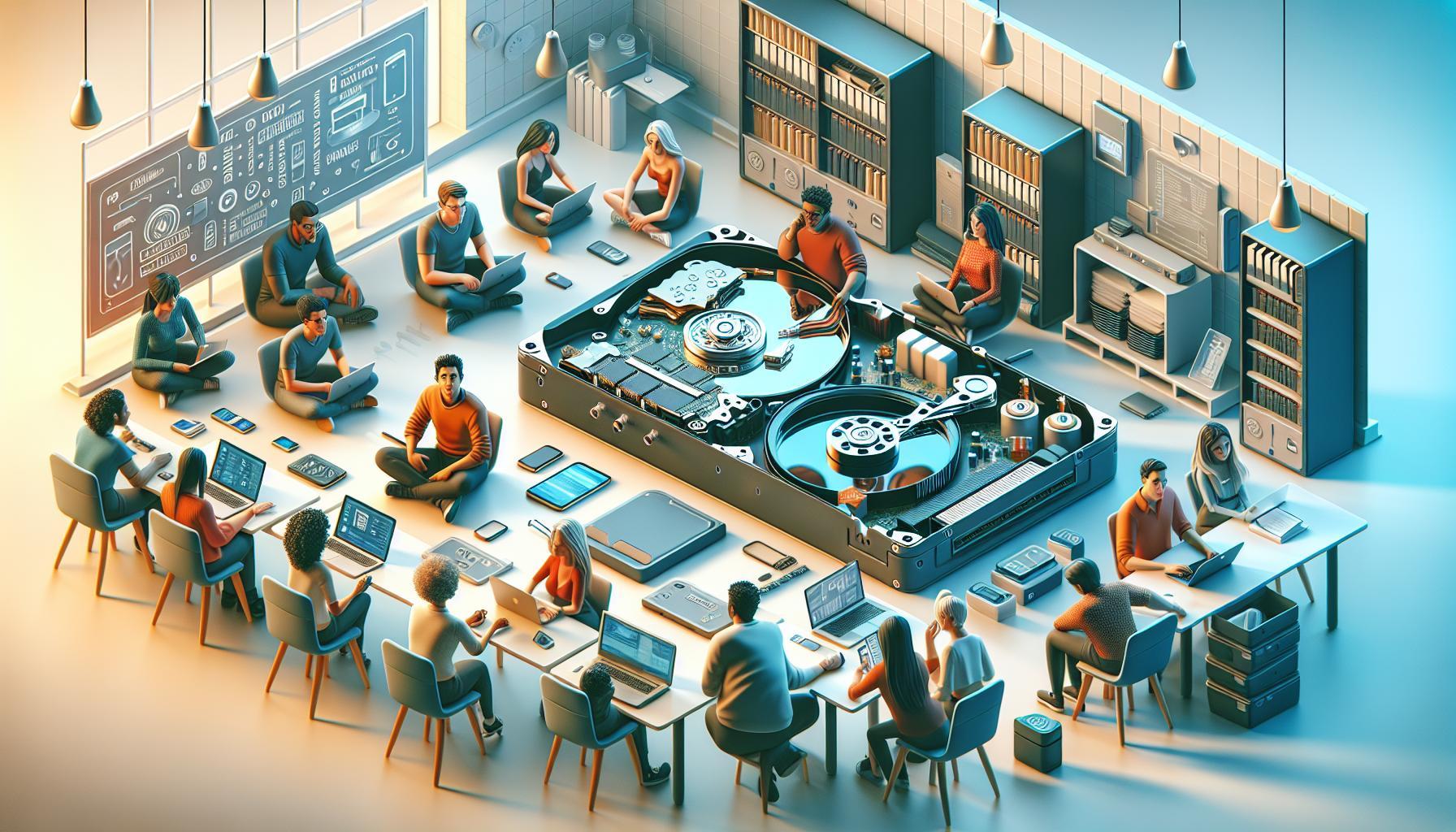

In today’s digital age, understanding computer storage is essential for anyone who uses technology regularly. A fixed disk, commonly known as a hard drive, plays a crucial role in how data is stored and accessed. It serves as the primary storage place for your operating system, applications, and personal files, ensuring that your device operates smoothly.
Have you ever experienced the frustration of running out of space for your favorite photos or documents? Or perhaps you’re curious about how to optimize your computer’s performance? This guide will demystify fixed disks, explaining how they function, types available, and tips for maintenance and upgrading. By the end, you’ll not only grasp the fundamentals but also feel empowered to make informed decisions about your storage needs. Ready to dive into the world of fixed disks and unlock the full potential of your technology? Let’s get started!
What Is a Fixed Disk: Definition and Overview
A fixed disk is an essential component in modern computing, serving as a primary storage medium for data and applications. Unlike removable storage devices, a fixed disk is permanently mounted within a computer system, allowing it to provide a stable and significant capacity for data management. This type of storage has evolved from traditional hard disk drives (HDDs) to advanced solid-state drives (SSDs), catering to the need for higher efficiency, faster access times, and greater reliability.
When discussing fixed disks, it’s important to recognize that they primarily consist of rotating platters coated with magnetic material in HDDs, whereas SSDs rely on flash memory to store data. This fundamental difference influences how each type handles data, their speed, durability, and overall performance. Fixed disks are not just about storing files; they give the system its fundamental workspace. Understanding how fixed disks function helps users make informed decisions about their setup, whether they’re gaming, video editing, or general usage.
Furthermore, fixed disks are critical in determining a system’s overall performance. The speed at which data can be read from or written to these drives dramatically affects everything from boot time to application launch speed. As technology continues to advance, the capabilities of fixed disks are expanding, making it crucial for users to stay informed about the latest developments and best practices for selecting and maintaining their drives.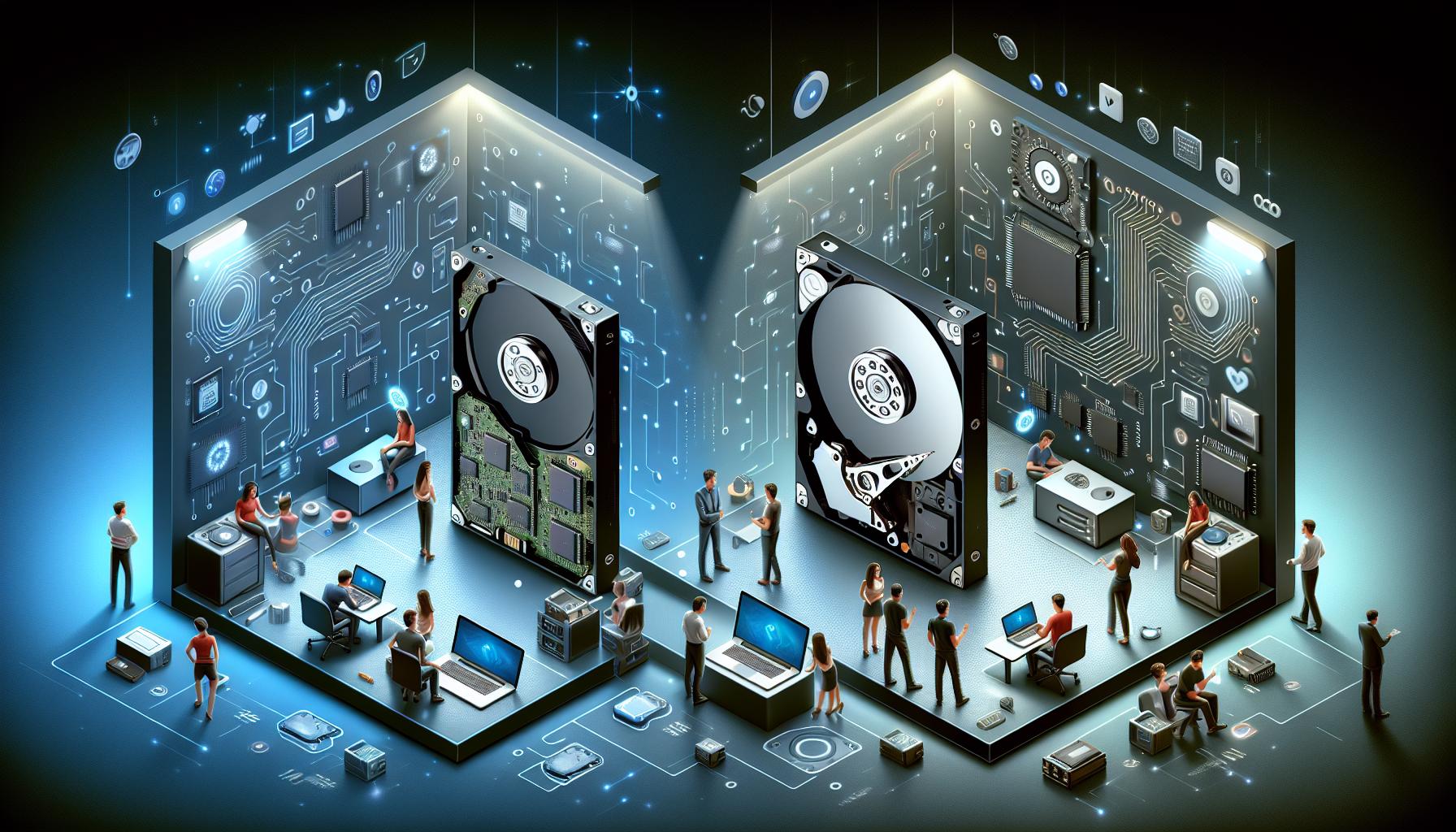
Types of Fixed Disks: HDDs vs. SSDs
The evolution of computer storage has led to the development of two main types of fixed disks: Hard Disk Drives (HDDs) and Solid State Drives (SSDs). Each serves the same fundamental purpose-storing data-but they do so using distinctly different technologies, each offering unique advantages and considerations for users.
HDDs have been around for decades, utilizing a mechanical system that includes spinning platters coated with magnetic material. Data is read and written by moving a read/write arm across the spinning disks. This mechanical nature means that while HDDs can offer larger storage capacities at lower costs-often making them the go-to choice for bulk storage-they are prone to physical wear and tear. Their speed is also limited by the speed of the platters; typically, a consumer HDD spins at either 5,400 or 7,200 RPM, which can lead to slower data access times, especially when handling multiple tasks simultaneously.
On the other hand, SSDs represent a newer technology that leverages flash memory to store data. This absence of moving parts makes SSDs significantly faster than HDDs. They can access data in milliseconds, which translates to quicker boot times, faster file transfers, and an overall smoother user experience. The trade-off, however, lies in the cost; SSDs can be more expensive per gigabyte, although prices are steadily decreasing as technology advances. Moreover, SSDs typically have lower storage capacities than HDDs, though high-capacity models are increasingly available.
When choosing between these two types of fixed disks, consider your specific needs. If you’re looking for a high-capacity drive for media files or extensive backups, an HDD could serve you well. However, for speed, efficiency, and day-to-day performance, particularly with running applications or gaming, an SSD is often the best choice. Understanding these differences can empower you to make informed decisions tailored to how you plan to use your computer.
How Fixed Disks Store Data: A Technical Breakdown
Data storage in computers fundamentally hinges on how fixed disks operate, and understanding the mechanics behind this can empower you to make informed choices about your storage options. Fixed disks-primarily Hard Disk Drives (HDDs) and Solid State Drives (SSDs)-use distinct methods to store and retrieve data, each encompassing a unique technology that defines its performance characteristics.
HDDs operate through a mechanical interface. Inside an HDD, you will find spinning platters coated with a magnetic material. During the data writing process, the read/write head moves over these platters, altering the magnetic polarity of particular sections to represent binary information (0s and 1s). Each revolution of the platter brings different sections under the head, enabling it to read or write data. This sequential access method allows for large amounts of data to be stored relatively cheaply but can lead to slower access times, particularly when the drive is fragmented or when multiple simultaneous read/write processes are occurring.
In contrast, SSDs adopt a solid-state approach that relies on flash memory to store data. This technology forgoes moving parts, utilizing NAND flash chips that are organized into blocks and pages. As a result, data can be accessed almost instantaneously since SSDs can read and write to many locations simultaneously, contrary to the sequential nature of HDDs. This speedy random access significantly reduces boot times and file transfer durations, making SSDs ideal for applications requiring quick data retrieval and storage.
Data Management in Fixed Disks
Both HDDs and SSDs necessitate sophisticated data management systems to optimize their performance. In HDDs, file systems manage data allocation while trying to minimize fragmentation. On the flip side, SSDs incorporate a process called wear leveling to ensure that data is spread evenly across the memory cells, extending their lifespan. This proactive management prevents any single area from being written to too frequently, mitigating the risks associated with data loss and performance degradation over time.
When deliberating on how fixed disks store data, it’s vital to consider the storage capacity and speed requirements for your needs. If you often manage large media files or a vast amount of data, HDDs may provide the cost-effective solution you need. However, for tasks requiring quick access and high-speed performance, SSDs are the superior choice. Understanding these technical nuances will not only help you choose the right storage solution but also enable you to maintain and optimize your data management approach effectively.
Understanding Disk Space: Capacity and Usability
Understanding how disk space works is crucial for effectively managing your computer storage. With information rapidly increasing in size-from high-resolution images to 4K videos-knowing how to make the most of your fixed disk space can significantly enhance your productivity and prevent unwelcome surprises, like running out of storage just when you need it the most.
When evaluating disk space, it’s important to consider both capacity and usability. Capacity refers to the total amount of data a fixed disk can hold, typically measured in gigabytes (GB) or terabytes (TB). Higher capacity drives, like modern HDDs and SSDs that can reach several terabytes, are perfect for users who store extensive libraries of media files or large datasets. Conversely, if you’re primarily using your computer for standard tasks like web browsing, document editing, or light multimedia work, a smaller capacity might suffice.
Usability, on the other hand, assesses how much of that capacity is genuinely accessible to you. Various factors influence usability, such as the operating system, applications, and user files. For instance, operating systems require a certain amount of space for installation and functioning, which may reduce your usable capacity. Furthermore, keep in mind that mechanical drives like HDDs can become fragmented over time, impacting performance and the efficient use of disk space. Regularly cleaning up unused files and utilizing built-in tools like Disk Cleanup on Windows or Optimize Storage on macOS can help maximize your disk’s usability.
To manage your disk space smartly, consider implementing these tips:
- Regular Monitoring: Check your disk space regularly through system settings. Tools like WinDirStat or Disk Inventory X can visually represent what files are taking up space, helping you make informed decisions.
- Data Organization: Create a systematic approach for file storage. Organizing files into directories makes it easier to locate items and determine what can be archived or deleted.
- Cloud Storage Solutions: Use cloud services for data that doesn’t need to be accessed constantly or for backup purposes. This approach can free up valuable disk space without the risk of data loss.
By understanding both capacity and usability within the context of fixed disks, you can make informed decisions that reflect your storage needs, optimizing your technology experience while ensuring hassle-free access to your data.
Performance Factors: Speed and Access Times
The speed of a fixed disk is one of the most crucial factors in determining a computer’s overall performance. Not only does it affect how quickly data can be read or written, but it also impacts application load times and the responsiveness of your system during multitasking. In general, fixed disks can be categorized into traditional Hard Disk Drives (HDDs) and Solid State Drives (SSDs), with each type demonstrating distinct performance characteristics.
HDDs rely on mechanical parts that spin disks and move read/write heads, which inherently limits their speed. Typical data transfer rates for HDDs range from about 80 to 160 MB/s, depending on various factors like the drive’s RPM (Revolutions Per Minute) rating. This mechanical nature also leads to latency, which stems from the time it takes for the heads to move to the correct track and the required rotational position of the platters. In contrast, SSDs utilize flash memory with no moving parts, leading to significantly faster data access speeds ranging from 200 MB/s to upwards of 7,000 MB/s for NVMe SSDs. This ability allows SSDs to launch applications and transfer files in a fraction of the time it would take an HDD.
When evaluating performance, it’s essential to consider access times as well. Access time refers to the time it takes for the drive to retrieve data. With HDDs, average access times can fall between 10 to 15 milliseconds, while SSDs typically boast access times measured in microseconds. This reduction in access times translates into a smoother and faster computing experience, especially when running multiple applications or dealing with large files.
To put this into perspective, consider a scenario where you’re editing a large video file. An SSD will allow for swift edits and real-time previews, enhancing workflow efficiency-qualities vital for content creators on a deadline. On the other hand, working from an HDD may lead to frustrating delays and lag, potentially hindering productivity.
In summary, the choice between HDD and SSD significantly affects both speed and access times, thereby influencing the responsiveness of your computer. If you prioritize rapid data access and efficient multitasking, investing in an SSD could greatly enhance your overall computing experience.
Comparing Fixed Disks to Other Storage Solutions
When considering the best storage solution for your computer, it’s essential to look beyond fixed disks like HDDs and SSDs. Various alternatives cater to different needs, providing flexibility and functionality in data storage. External hard drives, network-attached storage (NAS), and cloud storage have gained popularity due to their unique benefits, helping you to optimize how and where you store your valuable data.
External Hard Drives
External hard drives serve as a convenient way to expand storage without the hassle of internal upgrades. They come in both HDD and SSD formats, offering the same performance considerations as their internal counterparts. For instance, if you’re frequently on the go or need extra space for backups, an external SSD can provide fast read/write speeds while being portable. Conversely, an external HDD can offer larger storage capacities at a more affordable price, making them ideal for storing large media libraries or extensive backups.
Network-Attached Storage (NAS)
NAS devices are a fantastic solution for those needing shared access among multiple users. Ideal for home offices or small businesses, NAS allows users to store, retrieve, and back up files over a local network. With redundancy features such as RAID configurations, NAS can keep your data secure by duplicating it across multiple drives. Moreover, modern NAS units often come equipped with cloud capabilities, providing access to your files from anywhere in the world, seamlessly integrating private storage with cloud flexibility.
Cloud Storage
Cloud storage has revolutionized how we think about data security and accessibility. Services like Google Drive, Dropbox, and OneDrive allow users to store data off-site, ensuring that files are safe from local hardware failures. Cloud storage also enables easy collaboration, as multiple users can work on files simultaneously, regardless of their physical location. While cloud options typically offer convenient storage, they rely on internet connectivity and may incur recurring fees based on storage capacity. Therefore, understanding your internet reliability and data needs is pivotal when considering cloud solutions.
Ultimately, the choice between fixed disks and alternative storage solutions depends on your specific requirements-whether you prioritize speed, portability, network accessibility, or online collaboration. By exploring various storage options, you can find the combination that best meets your needs, empowering you to manage your digital assets effectively. To make the most informed decision, consider factors such as data volume, access patterns, and your budget to choose the right mix of storage solutions.
Best Practices for Maintaining Fixed Disks
Maintaining the health of your fixed disk is essential to ensure longevity and optimal performance. A little preventive care can go a long way in protecting your valuable data and keeping your system running smoothly. Here are some best practices to support the maintenance of both Hard Disk Drives (HDDs) and Solid State Drives (SSDs).
Regular Backups
One of the most important habits you can develop is to back up your data regularly. Use external drives or cloud storage solutions to create copies of crucial files. This not only protects against data loss due to hardware failure but also ensures that you can recover valuable information if your fixed disk encounters issues. Consider using backup software that automates this process and allows you to schedule backups at convenient times.
Monitor Disk Health
Keep an eye on your disk’s health by utilizing monitoring tools that can check for potential issues. Many HDDs come with built-in S.M.A.R.T. (Self-Monitoring, Analysis, and Reporting Technology) features that indicate operational statuses, temperature, and any errors. Applications like CrystalDiskInfo can give you detailed insights into the condition of your drives. If you notice unusual sounds or performance issues, it might be time to investigate further.
Manage Storage Space
Properly managing your disk space can help maintain performance. Avoid filling your drive to full capacity, as both HDDs and SSDs will experience slowdowns when storage is nearly maxed out. Regularly delete unnecessary files, and consider organizing your data into folders for easier access. You might also leverage disk cleanup utilities to remove temporary files and system cache that can accumulate over time.
Cooling and Placement
Ensure that your fixed disk is kept in an environment with proper ventilation to prevent overheating. Excess heat can lead to hardware failures in both HDDs and SSDs. If you’re using a desktop, ensure it’s placed in a well-ventilated area. For laptops, avoid using them on soft surfaces that can block airflow like bedding or couches.
By integrating these practices into your digital life, you’ll enhance the reliability of your fixed disks and optimize their performance. Regular maintenance doesn’t just mitigate issues-it empowers you to keep your data secure and your technology running at its best.
Troubleshooting Common Fixed Disk Issues
Encountering issues with your fixed disk can be daunting, especially when you rely heavily on your data storage for daily tasks. Fortunately, many common problems can be diagnosed and resolved with a little basic knowledge and some troubleshooting steps. By understanding these issues, you can empower yourself to act promptly and effectively, ensuring your data remains safe and your system runs smoothly.
Identifying the Symptoms
The first step in troubleshooting is recognizing the symptoms your fixed disk is exhibiting. Common signs of potential disk issues include:
- Strange noises: Clicking or grinding noises can indicate physical damage to an HDD.
- Slow performance: If your computer is taking longer to access files, it may signal that the disk is failing.
- Frequent crashes: Unexpected errors or crashing applications may stem from problems with disk integrity.
- Corrupted files: Files that won’t open or are appearing jumbled can be a sign of disk corruption.
By paying attention to these signs, you can take proactive measures before a more significant failure occurs.
Basic Troubleshooting Steps
Once you’ve identified the symptoms, follow these steps to troubleshoot your fixed disk:
- Check Connections: Ensure that all cables and connections are secure. Loose or damaged connections can cause intermittent issues.
- Run Diagnostic Tools: Use built-in tools such as Windows Check Disk (chkdsk) or third-party software like CrystalDiskInfo to assess your disk’s health. These tools can help identify logical errors or bad sectors.
- Free Up Space: If your fixed disk is nearly full, it can severely impact performance. Regularly delete unnecessary files or move them to an external source to create space.
- Defragment (for HDDs only): If you’re using a Hard Disk Drive, running a defragmentation tool can optimize file storage and improve performance.
When to Seek Professional Help
While many disk issues can be resolved using the steps above, some problems may require professional assistance. If you notice persistent symptoms, are unable to access critical files, or if your disk’s health report indicates severe issues, consider consulting a data recovery specialist. Additionally, if your disk has sustained physical damage (like from a drop), it’s crucial to minimize use to avoid further data loss.
Troubleshooting fixed disk issues doesn’t have to be overwhelming. By understanding the common signs and employing straightforward diagnostic steps, you can take control of your storage solutions. This proactive approach will help you maintain your system’s performance and protect your valuable data from unexpected failures.
Choosing the Right Fixed Disk for Your Needs
When it comes to selecting a fixed disk, making the right choice can significantly impact your computer’s performance and your overall user experience. With a variety of options available, including Hard Disk Drives (HDDs) and Solid State Drives (SSDs), understanding your specific needs and how different disks function is crucial. Whether you’re a gamer, a professional who handles large files, or simply someone who wants to improve your system’s responsiveness, the right fixed disk can enhance your productivity and provide peace of mind.
Before diving into the specifications, it’s important to consider what you’ll primarily use the disk for. If you’re looking for speed and efficiency, an SSD might be your best option. SSDs are known for their fast read and write speeds, which means quicker boot times and faster application launches. However, if you require a larger storage capacity at a lower price point, HDDs might be more suitable. They offer higher space for a fraction of the cost, making them ideal for storing large files, such as videos, photos, and backups.
Here’s a quick comparison to guide your decision:
| Feature | HDD | SSD |
|---|---|---|
| Speed | Slower (up to 150 MB/s) | Much faster (up to 5000 MB/s) |
| Capacity | Higher (up to 20 TB+) | Lower (up to 8 TB) but expanding |
| Durability | Less durable (more mechanical parts) | More durable (no moving parts) |
| Price per GB | Lower | Higher |
Additionally, don’t forget to factor in your future needs. If you anticipate your data storage requirements to grow, opting for a larger capacity HDD could save you from needing to upgrade shortly. On the other hand, if you find yourself frequently accessing large files and require fast performance, investing in an SSD could be worth the initial expense.
Ultimately, choosing the right fixed disk is about balancing performance, storage capacity, and cost to meet your specific needs. Take your time to assess your usage patterns, research options, and don’t hesitate to reach out to professionals or online communities if you have questions. With the right disk, you’ll enjoy a smoother and more efficient computing experience.
Future of Fixed Disk Technology: Trends and Innovations
The landscape of fixed disk technology is rapidly evolving, driven by the demand for faster, larger, and more reliable storage solutions. As more data is generated and consumed across personal devices, businesses, and the cloud, manufacturers are pushing the limits of what’s possible in storage technology. One key trend is the ongoing advancement of SSDs, with innovations like PCIe 4.0 and 5.0 interfaces enabling astounding read and write speeds that can exceed 7000 MB/s. This leap in speed opens up new possibilities for applications requiring intensive data processing, such as gaming, video editing, and data science.
Emerging Technologies Impacting Fixed Disks
Another exciting development is the rise of 3D NAND technology. This approach stacks memory cells vertically, allowing manufacturers to produce larger capacity drives without expanding their physical footprint. As a result, consumers can now obtain SSDs with capacities of 8TB and beyond, which were previously the realm of traditional HDDs. This is particularly beneficial for professionals dealing with large files or extensive libraries of media content. Furthermore, efforts to integrate AI into data management systems can enhance performance by optimizing how data is written and retrieved on these disks.
Sustainability and Energy Efficiency
As the world increasingly prioritizes sustainability, manufacturers are focusing on creating components that are not only high-performing but also energy-efficient. Companies are developing disks that consume less power while maintaining high performance, catering to environmentally conscious consumers and organizations. For example, SSDs generally consume less power than their HDD counterparts, which is a crucial factor in mobile devices where battery life is paramount.
Looking Ahead: Storage Solutions in the Cloud
Lastly, the integration of cloud storage with traditional fixed disks suggests a future where users may seamlessly transition between local and cloud storage environments. Hybrid solutions are becoming popular, allowing users to maintain essential data locally for quick access while leveraging the vast capacities of cloud solutions for less frequently accessed files. This approach not only enhances accessibility but also provides an additional layer of data redundancy.
In summary, as technology continues to advance, the future of fixed disk technology promises to bring exciting innovations that enhance speed, capacity, and efficiency. Whether you’re a casual user or a professional, staying informed about these trends will help you make better decisions and take full advantage of available storage solutions.
Data Recovery: What to Do When Disaster Strikes
Experiencing a data loss can be one of the most stressful situations for any computer user. Whether due to accidental deletion, malware attacks, or a complete disk failure, the feeling of helplessness can be overwhelming. Yet, understanding the steps you can take for effective data recovery can empower you to act swiftly and confidently.
First, it’s crucial to stop using the affected fixed disk immediately. Continuing to write new data onto a malfunctioning disk can overwrite the information you’re trying to recover, making it more challenging, or even impossible, to retrieve lost files. Once you’re ready to initiate recovery efforts, consider the following approaches:
Common Recovery Methods
- Backup Restoration: The simplest way to recover lost data is to restore from a backup if you have one. Regularly scheduled backups with tools like Windows File History or macOS Time Machine can save you a lot of heartache.
- File Recovery Software: If backup options are unavailable, numerous software tools can help recover lost data from fixed disks. Programs like Recuva, EaseUS Data Recovery Wizard, and Stellar Data Recovery are user-friendly and can guide you through the process.
- Professional Data Recovery Services: If your fixed disk has suffered physical damage (like clicking sounds or failure to boot), it may be best to consult professionals. Specialized labs have the tools and expertise to recover data from physically damaged disks.
Before opting for any recovery method, check your warranty and consider whether using third-party software or services could void it. Always read user reviews and consult guides to ensure you choose reputable solutions.
Preventing Future Data Loss
Taking preventative steps can significantly reduce the risk of future data calamities. Here are some effective practices:
- Regular Backups: Implement a routine backup strategy using external hard drives or cloud storage services. Consider the 3-2-1 rule: three total copies of your data, two local but on different devices, and one copy off-site.
- Monitoring Disk Health: Utilize tools like CrystalDiskInfo to monitor your fixed disk’s health. This can alert you to potential failures before they happen.
- Antivirus and Security Measures: Protect your disks from malware and viruses by maintaining up-to-date antivirus software and practicing safe browsing habits.
By incorporating these practices into your routine, you can mitigate risks and enhance your data’s longevity. Remember, while data recovery can often seem daunting, being prepared and informed will place you in a commanding position the next time disaster strikes.
Frequently asked questions
Q: What are the main advantages of using a fixed disk for data storage?
A: Fixed disks, such as HDDs and SSDs, provide reliable data storage with significant advantages. They offer faster data access, larger storage capacities, and durability against physical shocks, especially SSDs. For optimal performance, consider how these aspects align with your specific storage needs.
Q: How does a fixed disk differ from removable storage?
A: A fixed disk is permanently installed within a device, providing continuous access, while removable storage can be easily inserted and removed, allowing transfer between devices. Choosing between them depends on your need for portability versus capacity and speed.
Q: What does disk fragmentation mean, and how does it affect performance?
A: Disk fragmentation occurs when data is scattered across a storage medium, slowing access times. Regular defragmentation can help maintain performance, particularly for HDDs, as SSDs manage data differently and don’t require defragmentation.
Q: Can I upgrade my fixed disk easily?
A: Yes, upgrading a fixed disk is often straightforward, depending on your device. Many laptops and desktops allow for easy access to replace HDDs or SSDs, enhancing performance and storage capacity. Use guidelines specific to your device model for best results.
Q: What are the signs that my fixed disk is failing?
A: Common signs of a failing fixed disk include unusual noises, frequent crashes, slow performance, and difficulty accessing files. Regularly back up data and consider immediate replacement if you notice these issues to prevent data loss.
Q: How do I safely format a fixed disk?
A: To format a fixed disk, access your device’s disk management tools, choose the disk, and select the formatting option. Ensure you back up data beforehand, as formatting erases all information. Follow the system prompts for a successful format.
Q: What is the typical lifespan of a fixed disk?
A: The lifespan of a fixed disk varies; HDDs generally last 3-5 years while SSDs can last 5-10 years, depending on usage and technology. Regular monitoring and maintenance will help extend the life of your storage devices.
Q: Why is data recovery important for fixed disks?
A: Data recovery is crucial because it helps retrieve lost or corrupted data, ensuring no critical information is permanently lost. Utilizing professional recovery services or software can recover data from failing fixed disks. For preventive measures, regular backups are essential.
In Retrospect
Thanks for exploring the world of fixed disks with us! Understanding how these crucial components work can truly enhance your computer storage know-how and empower your tech journey. If you’re eager to learn more about optimizing your storage solutions or delve deeper into related topics like SSD vs. HDD, check out our articles linked below.
Ready to take the next step? Subscribe to our newsletter for the latest insights and tips, ensuring you stay ahead in the tech game! If you have any questions or thoughts about fixed disks, we’d love to hear from you in the comments section. Don’t forget to explore our guides on data recovery and performance enhancements for your devices; they could be the key to making the most out of your tech setup. Your journey doesn’t have to stop here-let’s keep learning together!