Did you know that the CPU, often dubbed the “brain” of your computer, plays a crucial role in how your device operates? Understanding where the CPU is located can empower you to troubleshoot issues, upgrade components, or even build your own system. For many, the layout inside a computer can seem daunting, but knowing the position of the CPU is a fundamental step toward better tech literacy.
In this guide, we’ll demystify the location of the CPU, highlighting its importance in the overall performance of your computer. Whether you’re experiencing slow processing speeds, curious about hardware upgrades, or just want to understand your technology better, knowing where the CPU resides will be invaluable. Let’s dive into the details and uncover the vital role of this key component!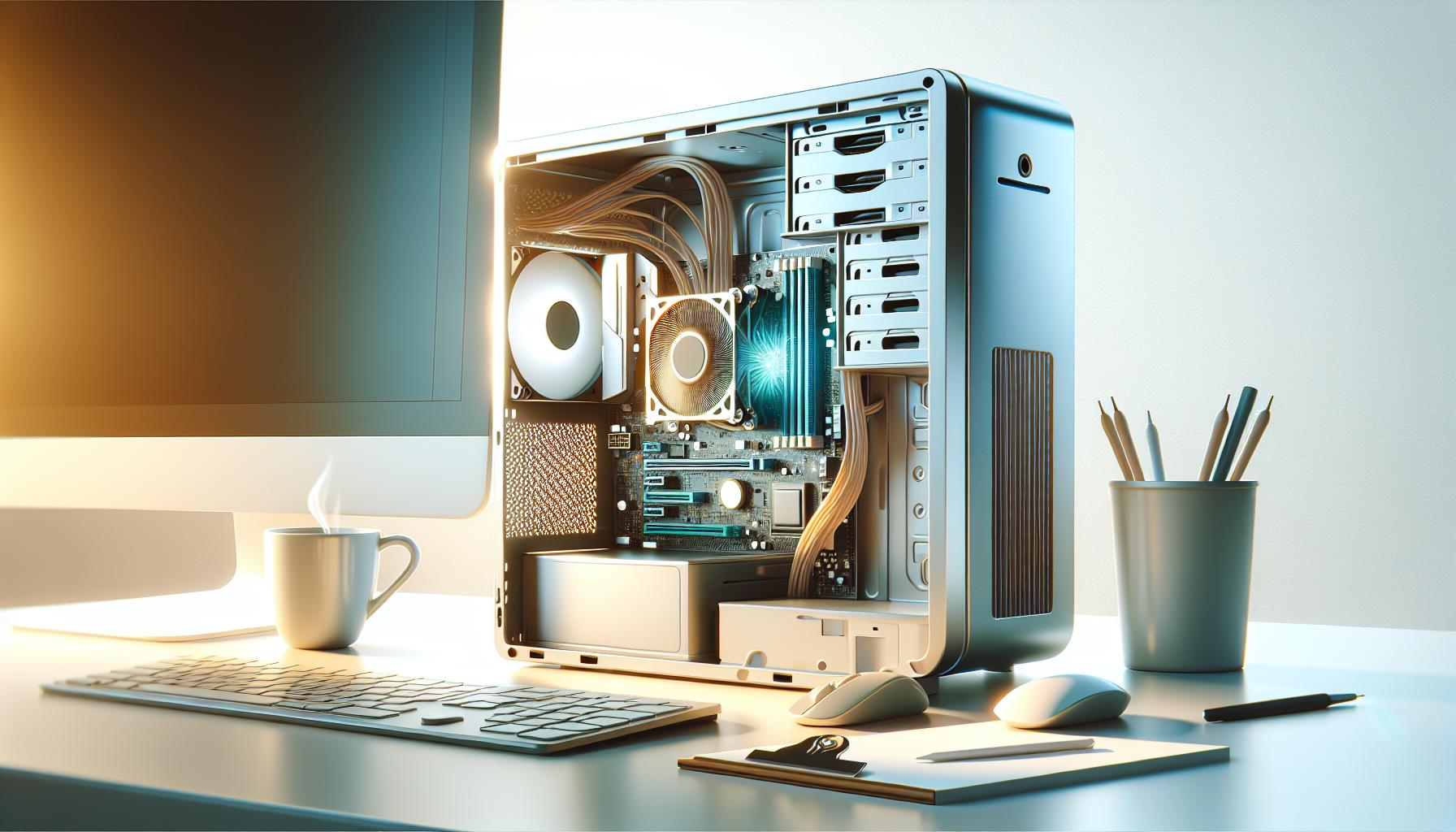
Where Is the CPU Located in a Computer?
The central processing unit, or CPU, is one of the most vital components in a computer, often referred to as the “brain” of the machine. It’s where most calculations take place, making its location crucial for efficient operations. In desktop computers, the CPU is typically found mounted directly onto the motherboard, nestled into a specific slot or socket designed for its unique pin layout. Motherboards vary significantly, but they usually have dedicated areas clearly marked for CPU installation, often accompanied by a cooling solution to manage the heat generated during processing.
In laptops and other compact devices, the CPU’s location can be less visible, usually soldered directly onto the motherboard to save space. This integration not only enhances portability but also complicates upgrades, as it’s generally impractical to replace a soldered CPU. Understanding the layout of your device is essential for anyone looking to upgrade or troubleshoot, so having a clear idea of where the CPU is located can empower users to take necessary actions with confidence.
To locate the CPU in your device, begin by opening the case or accessing the internal compartment, which could involve removing a panel or the entire casing. Look for a large, rectangular metal heat sink or fan assembly – this often indicates the presence of the CPU underneath. If you’re using a laptop, you can consult the device manual for guidance on how to access the internal components safely. Once inside, identifying the CPU is usually straightforward as it is prominently placed on the motherboard, often accompanied by markings indicating its model.
For various devices, the placement may slightly differ. Classically, in gaming desktops, you’ll find a more spacious arrangement that encourages higher cooling capabilities and offers room for upgrades. In contrast, in ultra-thin laptops, the CPU’s position is optimized for thermal efficiency and minimized space, often affecting upgrade options. Understanding these variations helps demystify CPU placement across different platforms and enhances awareness of your device’s architecture.
Understanding the Role of the CPU in Computing
The central processing unit (CPU) serves as the powerhouse of a computer, orchestrating tasks and enabling software applications to operate seamlessly. Imagine it as the conductor of an orchestra, directing the various components-memory, storage, and peripherals-to work harmoniously. Every action you take on your device, whether it’s browsing the internet, editing a document, or gaming, begins with a command sent to the CPU, which processes the data and instructs other parts of the system to respond accordingly.
The role of the CPU extends beyond mere computation; it also plays a crucial part in determining system performance. Modern CPUs are designed with multiple cores, allowing them to handle several tasks simultaneously. This parallel processing capability enhances efficiency and speeds up complex computations, making multitasking feel smoother and more responsive. For instance, while you might be streaming a movie and downloading a file simultaneously, the CPU efficiently divides its attention to ensure both tasks are performed without noticeable delays.
It’s important to consider how advancements in CPU architecture influence computing capabilities. With the introduction of features like hyper-threading, where each core can process two threads of execution simultaneously, the efficiency of resource utilization has improved significantly. This means that applications designed to leverage such technologies can experience substantial performance boosts. Users looking to enhance their computing experience would benefit from understanding these developments, helping them make informed decisions about upgrades or new purchases that align with their computing needs.
By grasping the role and significance of the CPU, you empower yourself to optimize your computing experience, whether that involves choosing the right hardware for your gaming rig or simply troubleshooting a performance issue with your laptop. Understanding the implications of CPU technology can lead to better decisions and, ultimately, a more satisfying interaction with technology.
Common CPU Locations in Different Devices
In every computer and computing device, the CPU plays a pivotal role, but its location varies significantly across different hardware. Knowing where to find the CPU can help you troubleshoot issues, upgrade components, or simply understand how your device operates.
In desktop computers, the CPU is typically housed in the motherboard’s CPU socket, which is a square chip holder often concealed beneath a cooling fan or heatsink. It’s usually located near the center of the motherboard for optimal airflow and thermal management. Taking off the side panel of your desktop can provide direct access to this area, allowing you to inspect, upgrade, or replace the CPU if needed.
For laptops, the CPU is similarly located on the motherboard, but accessing it can be more complex. Many laptops are designed with compactness in mind, meaning the CPU may be buried beneath layers of components, including RAM, storage, and battery. For most users, accessing the CPU would require opening the laptop chassis, which varies from one model to another. Some manufacturers even use proprietary screws or clips, making it essential to reference the device’s service manual for careful disassembly.
In mobile devices like smartphones and tablets, the CPU is integrated into a System on a Chip (SoC), making it practically impossible to identify separately without specialized tools. This design improves power efficiency and space utilization, thus enhancing the device’s performance. In such cases, the SoC is usually located near other critical components such as memory and storage chips, often encased in protective layers that require professional handling for repairs or upgrades.
Understanding these differences empowers you to effectively navigate hardware in various devices, whether you’re looking to optimize performance or perform repairs. Recognizing how the CPU is situated in different environments enhances your overall tech literacy and opens up avenues for further exploration into device maintenance and upgrades.
How to Physically Locate the CPU in Your Device
To successfully locate the CPU in your device, it’s essential to approach the task with a clear plan and understanding of your specific hardware. This can feel daunting, especially if you have no prior experience, but with some confidence and the right steps, you’ll be able to identify the CPU with ease.
For desktop computers, start by ensuring that the power is completely turned off and unplugged. Remove the side panel of the case by unscrewing or sliding it off, depending on your model. Look for the motherboard, which is the large circuit board inside your PC. The CPU is typically situated in a square or rectangular socket at or near the center of the motherboard. It’s often covered by a heatsink or a cooling fan. Gently remove these components (if necessary and ensure you’re grounded to prevent static damage), and you should be able to see the CPU, which is usually a square chip with a series of pins or contacts underneath.
When dealing with a laptop, the process can be more complicated due to the compact design. First, consult your laptop’s user manual or manufacturer’s website for specific instructions related to your model, as this will outline any necessary tools and precautionary measures. Begin by powering off the device and removing the battery (if removable), then unfasten any screws securing the bottom panel. Be aware that some models may have additional components layered over the CPU, such as RAM or storage drives. You’ll likely need to remove these components to access the CPU. Be patient and gentle with the laptop’s fragile connectors and cables during this process.
In mobile devices like smartphones and tablets, it’s important to note that the CPU isn’t easily accessible. Instead, it’s integrated into a System on a Chip (SoC) alongside other components. Identifying the SoC requires disassembling the device, which typically involves specialized tools and techniques-definitely not amateur territory. For most users aiming to upgrade or troubleshoot, seeking professional help or referring to proper service guides is usually the best approach.
By adopting these methods and understanding your device’s layout, you’ll emerge more empowered to navigate and maintain your technology. Whether you’re looking to replace or upgrade your CPU, knowing exactly where to look will simplify the process and enhance your confidence as you work with your device’s hardware.
CPU Architecture: Exploring Its Position on the Motherboard
The CPU, or Central Processing Unit, is often referred to as the brain of the computer. Understanding its position on the motherboard can demystify how computers operate and empower you to tackle upgrades or repairs with confidence. Typically, the CPU is directly situated within a designated socket on the motherboard, where it interfaces with various components to manage and process instructions. The architectural design of motherboards varies among manufacturers and models, but a few key principles remain consistent, making it easier to locate the CPU.
The CPU socket is centrally located on the motherboard, typically accompanied by a heatsink or a cooling unit. This placement ensures optimal thermal management, as the CPU generates significant heat during operation. To visually identify the CPU, look for a square or rectangular socket that may have a lever mechanism to secure the chip in place. Detailed diagrams in the user manual often illustrate this beautifully, allowing for easy reference. When designing motherboards, manufacturers also consider factors like power connectors, data buses, and expansion slots, strategically positioning the CPU for efficient performance.
Another aspect to consider is the continuity of traces and circuits that connect the CPU to other essential components, such as RAM and graphics cards. These connections facilitate swift communication, ultimately impacting your device’s overall performance. The CPU’s design will align with the motherboard’s architecture-making some designs more suited for specific tasks, like gaming or data processing, leading to the creation of various chipsets and socket types. This is why knowing the exact CPU type and socket (like AM4 for AMD or LGA 1151 for Intel) is crucial for compatibility when upgrading or replacing a processor.
By becoming familiar with the layout and components surrounding the CPU on the motherboard, you enhance your ability to troubleshoot issues or explore hardware modifications with ease. Whether you’re aiming to boost performance or simply diagnose a problem, understanding the CPU’s role and location equips you with knowledge to get started on your tech journey. Remember, exploring your computer at the hardware level can be both enlightening and rewarding, making you more adept in dealing with technology as a whole.
Factors Influencing CPU Location and Design
When considering the design and location of a CPU within a computer, several factors come into play that ultimately impact not just the physical arrangement, but also the performance and thermal efficiency of the device. The layout of the motherboard is predominantly defined by the form factor, which dictates where the CPU socket will be placed. For instance, in ATX motherboards, the CPU is typically found at the center. This centralized location allows for shorter connections to RAM and expansion slots, reducing latency and enhancing communication speed.
Another crucial factor is thermal management. As CPUs generate heat during operation, their placement influences how effectively this heat can be dissipated. Manufacturers often design motherboards with airflow in mind; CPUs are positioned in a manner that allows for optimal placement of cooling solutions, such as heatsinks and fans. To further enhance cooling, you might notice that high-performance or gaming motherboards are designed with larger heatsinks or even liquid cooling options tailored to mitigate heat more effectively.
Moreover, the power delivery system impacts CPU design. Modern CPUs require significant power, and their location is influenced by the proximity to power connectors and traces that deliver electricity efficiently. This arrangement ensures that power supplied to the CPU can meet its demands while maintaining stability during intensive tasks, like gaming or video rendering. The design of the power phase, including the placement of capacitors and voltage regulators, is often integral to the motherboard’s layout.
Lastly, compatibility with different CPU architectures significantly influences design choices. Socket types and the physical dimensions of CPUs vary widely between manufacturers, with Intel and AMD using distinct sockets like LGA and AM4, respectively. The CPU’s position must accommodate these standards while also considering modern design trends, such as increased core counts and integrated graphics capabilities. By understanding these influencing factors, you can appreciate not only where to find the CPU but also how its location affects overall system performance and reliability.
The Impact of CPU Location on Performance
The positioning of the CPU within a computer profoundly influences overall system performance, dictating everything from processing speed to heat management. When the CPU is centrally located on the motherboard, as seen in typical ATX designs, it enables shorter communication paths to RAM and other critical components. This proximity reduces latency, thereby facilitating quicker data exchanges and enhancing application responsiveness. In contrast, a less optimal placement-far from other components-can create bottlenecks, leading to slower performance during demanding tasks like gaming or video editing.
Thermal considerations also play a critical role in CPU performance. Efficient heat dissipation is vital for maintaining optimal operation speeds, especially for high-performance CPUs that generate significant heat under load. By strategically placing the CPU near efficient airflow pathways or compatible cooling systems (such as larger heatsinks or even liquid cooling solutions), manufacturers promote better thermal management. This focus on cooling effectiveness not only prolongs the CPU’s lifespan but also prevents throttling, where the processor reduces its performance to cool down, which otherwise might hinder gaming sessions or heavy computational tasks.
Moreover, the layout of the motherboard affects power delivery to the CPU. Proper placement near power connectors and traces ensures that the CPU receives consistent power, especially important during taxing operations. Systems that lack efficient power delivery can experience instability, amplifying the risk of crashes or reduced performance during high-load situations.
In conclusion, the impact of the CPU’s location on performance cannot be overstated. It shapes how quickly data can be processed and whether the CPU can operate efficiently without overheating. Understanding these dynamics not only helps users appreciate their systems better but can also guide future upgrades or builds for optimal performance.
Visual Guide: Identifying the CPU in Popular Computers
Identifying the CPU in your computer can be a rewarding venture, shedding light on the heart of your machine where all computational magic begins. It’s where complex calculations happen, and understanding its location can empower you to maintain or upgrade your system effectively. Let’s explore how you can easily spot the CPU across various popular devices, whether you’re delving into a desktop, laptop, or even a gaming console.
In traditional desktop computers, the CPU is typically found right at the center of the motherboard, covered under a large heatsink. To locate it, first, ensure your computer is turned off and unplugged. Open the side panel of your case and look for a square chip, usually labeled with the manufacturer’s name and model number, nestled in a socket that may have a locking mechanism. The heatsink, which might be adorned with a fan, is crucial for cooling the CPU, and its presence signifies the CPU’s location. In most ATX motherboards, this placement minimizes distance to RAM and other vital components, enhancing performance.
Here’s how you can locate the CPU across different types of systems:
- Desktops: Open the case and find the centrally located chip under heat dissipation units (heatsink/fan combo).
- Laptops: The CPU is usually located beneath the keyboard or secured under a panel at the bottom. Disassembling might require a specific tool, so check the laptop’s service manual for instructions.
- Gaming Consoles: To find the CPU, refer to the manufacturer’s repair guide. Consoles like the PlayStation and Xbox often keep the CPU hidden under a shield, requiring careful handling to access.
Always consult your device’s user manual or online resources for specific instructions regarding your particular model. This way, you’ll ensure you don’t inadvertently damage any components. Recognizing the CPU not only builds your tech knowledge but also equips you with the confidence to make informed upgrades, which can enhance your computing experience significantly. Remember, familiarity with your device’s internals is a key step in any tech adventure!
Common Misconceptions About CPU Placement
Understanding where the CPU is located in your device can be shrouded in myth and misunderstanding. One common misconception is that CPUs are easy to find in all devices, which leads many beginners to believe they can simply unscrew their computer case and immediately pinpoint the CPU. In reality, the CPU is often hidden beneath a heatsink or fan assembly, and accessing it typically involves removing several components carefully. This added complexity might deter some users from exploring their hardware but shouldn’t; with patience and guidance, it’s entirely achievable!
Another prevalent myth is that all CPUs are the same size and fit the same sockets. This is far from true! CPUs come in various architectures, types, and sizes, each designed for specific motherboards. Trying to fit a CPU into a socket it isn’t compatible with can damage both the processor and the motherboard. Moreover, over time, different socket designs have emerged, which means that even if two CPUs appear similar, they may not be able to function together. Always check compatibility before considering a CPU upgrade or replacement.
Some people also think that the CPU is solely responsible for a computer’s speed and performance. While it plays a significant role, other components-like RAM, GPU, and storage solutions-also greatly influence overall system performance. For instance, a powerful CPU paired with insufficient RAM can lead to bottlenecks that hinder performance. It’s crucial to understand that optimal performance comes from a harmonious balance of all components rather than relying on a single part.
Lastly, many believe that once installed, CPUs require no maintenance or cooling considerations. This idea can lead to overheating problems if not addressed. Adequate cooling through proper airflow, heat sinks, and thermal paste application is vital for maintaining CPU health and efficiency. Regularly cleaning dust from fans and checking thermal paste every few years can significantly extend a CPU’s lifespan. Embracing these facts empowers users to not only locate their CPUs confidently but also to appreciate the intricate roles these components play in modern computing.
Troubleshooting: Issues Related to CPU Placement
When it comes to CPU placement, many users encounter unexpected issues that can disrupt their computing experience. Understanding where the CPU is located and how it functions can significantly impact performance and functionality. One of the most common problems arises during installation or upgrades. Newer CPUs may not fit in older motherboards due to different socket types, which can lead to frustration if you aren’t prepared. Always ensure compatibility by researching both the CPU and motherboard specifications before attempting any installation.
Another notable issue is improper seating of the CPU. It’s crucial to place the CPU firmly and evenly into its socket. If not seated correctly, this can lead to overheating, instability, and crashes. Learn to recognize the signs of a poorly installed CPU-such as random restarts or failure to boot-so that you can troubleshoot effectively. Removing the heatsink and inspecting the CPU’s alignment is essential for resolving these problems.
Additional complications may arise due to insufficient cooling. If there’s inadequate airflow, dust buildup, or old thermal paste, the CPU may overheat. To combat this, regularly clean the interior of the computer and refresh the thermal paste every few years. Effective cooling solutions not only extend the CPU’s life but also enhance overall system performance. Familiarize yourself with efficient cooling methods tailored to your setup, which may include additional fans or aftermarket coolers.
Finally, be wary of potential BIOS issues following CPU installation. Sometimes, the BIOS needs an update to recognize newer processors. If your system exhibits erratic behaviors after an upgrade, double-check whether a BIOS update is necessary. Keeping your BIOS current ensures compatibility with new hardware and can resolve performance discrepancies. By being proactive about these common troubleshooting concerns related to CPU placement, you can create a smoother computing experience.
Future Trends in CPU Design and Location
As technology evolves at breakneck speed, so too does the design and location of the CPU within computing devices. One of the most exciting trends is the movement towards 3D stacking technology. This innovative approach allows for CPUs to be physically stacked, effectively minimizing the distance data has to travel within a processor. What this means for users is not just improved performance but also reduced power consumption; the shorter pathways reduce latency significantly. This method enables manufacturers to diversify processor capabilities while also enhancing overall system efficiency.
Another intriguing trend is the push for integrated computing solutions. With the rise of System on Chip (SoC) designs, which combine the CPU with other critical components (like the GPU and memory) onto a single chip, devices are becoming more compact and efficient. This trend is particularly significant for mobile devices and laptops, where space is at a premium. As these SoCs gain popularity, expect to see them spread to other platforms, such as desktops, ultimately reshaping how we understand traditional CPU placement.
The rise of AI-optimized CPUs is also changing the landscape. These processors are specifically designed to handle AI tasks more effectively than conventional CPUs. Manufacturers are increasingly focusing on creating CPUs that can execute machine learning algorithms efficiently, leading to significantly enhanced performance in applications like image recognition and natural language processing. With such specialized designs, not only will the location of CPUs shift on motherboards to accommodate these functions, but the entire manufacture and installation process may evolve as well.
Lastly, with sustainability becoming a primary concern, manufacturers are exploring more eco-friendly materials and designs for CPUs. This trend also encompasses thermal management solutions that improve energy efficiency. The integration of advanced cooling technologies directly impacts how CPUs are located within devices, as improved cooling can allow CPUs to operate at higher performance levels without risk of overheating. This shift not only reflects consumer demand for better performance but also a collective responsibility towards our environment.
As you navigate the evolving landscape of computing technology, staying aware of these trends will empower you to make informed decisions, whether you’re upgrading your hardware or purchasing a new device. Embracing these changes not only enhances your experience but also prepares you for the future of computing technology.
Frequently asked questions
Q: Where in the computer is the CPU located?
A: The CPU is typically located on the motherboard, often seated in a designated socket. This socket is designed to secure the CPU and facilitate electrical connections, ensuring optimal performance within the computer’s architecture.
Q: How can I locate the CPU in my laptop?
A: To locate the CPU in your laptop, consult the user manual or online resources specific to your model. Usually, accessing the CPU requires removing the bottom panel, as it’s often mounted directly on the motherboard for compactness.
Q: What does the CPU look like inside a computer?
A: Inside a computer, the CPU appears as a small rectangular chip with metallic pins or contacts on its underside. It may be covered by a heat sink or fan, which helps dissipate heat generated during operation.
Q: Why is CPU placement important?
A: CPU placement is crucial because it affects heat dissipation and airflow within the computer. Proper placement ensures efficient cooling, which can enhance performance and prolong the CPU’s lifespan.
Q: Can the CPU be upgraded, and where can I find it?
A: Yes, CPUs can often be upgraded if the motherboard supports newer models. To find the CPU, open the computer case, and locate it on the motherboard, usually under a heat sink.
Q: What should I do if my CPU is overheating?
A: If your CPU is overheating, check if the cooling system is functioning correctly and ensure there’s adequate airflow in the system. Cleaning dust from fans and applying new thermal paste can help manage temperatures effectively.
Q: What are common misconceptions about CPU placement?
A: A common misconception is that CPU placement doesn’t affect performance, but proper airflow and cooling based on placement can significantly impact a computer’s efficiency and stability.
Q: How does CPU location impact performance in gaming PCs?
A: In gaming PCs, the CPU’s location can greatly affect airflow and thermal management. A well-placed CPU allows for effective cooling, which is essential for maintaining performance during high-demand gaming sessions.
Insights and Conclusions
Now that we’ve uncovered where the CPU is located in your computer, you can appreciate its role in processing and executing tasks. Understanding this fundamental component is crucial for anyone looking to optimize their tech setup. If you’re eager to delve deeper into computer architecture, check out our article on “The Role of RAM in Performance” for a comprehensive guide on how other components interact with the CPU.
Don’t miss out on future insights-subscribe to our newsletter for the latest tips and tricks! Have questions or comments? We’d love to hear from you below. By exploring related topics, you’ll not only enhance your technical knowledge but also empower yourself in your digital journey. Remember, the more you learn, the more confident you’ll become in navigating technology, so keep engaging with our content for a richer understanding.