


Do Not Disturb (DND) is a crucial feature for anyone seeking peace and productivity, helping to silence notifications during important moments. However, many users face the frustrating issue of DND unexpectedly turning off. This can lead to interruptions just when you need focus the most. Understanding why this happens and how to resolve it can enhance your daily routine, allowing you to take control of your device settings and maintain your ideal level of distraction-free time.
In this guide, we’ll explore common reasons behind this DND malfunction and provide practical solutions to restore your peace of mind quickly. Whether it’s misconfigured settings or software glitches, we’ve got the troubleshooting steps you need to fix it fast and ensure a smoother experience with your device. Keep reading to reclaim your focus and enjoy uninterrupted time like never before!
Why Does Your Do Not Disturb Feature Keep Turning Off?
Sometimes, the Do Not Disturb (DND) feature you’ve come to rely on can seem elusive, turning off at the most inconvenient moments. This frustrating occurrence can stem from several likely causes, most of which are easy to address once identified. One common reason for DND deactivation is the added customization found in newer operating systems, where specific settings may inadvertently conflict or override manual controls. For instance, if a Focus mode is set to activate automatically during certain times or locations, it may disable DND when you least expect it. Regularly checking these scheduled settings can prevent unexpected interruptions.
Another factor could be the permissions and configurations within your settings. Adjustments made to notifications or connected apps may interfere with how DND functions. For example, if notifications from priority contacts are configured incorrectly, these notifications might sneak through even when DND is turned on. Hence, it’s essential to review which apps have permission to bypass DND and modify this as needed to ensure peace during designated quiet times.
Lastly, software updates also play a crucial role. While updates often enhance your device’s performance, they may unintentionally introduce glitches that affect existing features like DND. Keeping your device up to date is vital, but if problems persist after an update, consider exploring community forums and support resources for insights. By understanding these common triggers and maintaining an organized approach to your settings, you can take control of your DND feature and minimize disruptions in your daily life.
Common Causes of Do Not Disturb Issues
Confusion around the Do Not Disturb feature can often lead to unnecessary disruptions in your life, especially when it appears to turn off without warning. Understanding the common causes behind this issue can empower you to regain control over your device’s settings and ensure you enjoy uninterrupted moments when you need them most.
One prevalent reason for Do Not Disturb (DND) problems lies in the interaction between DND settings and other features such as Focus or Sleep modes. Many devices link these modes to schedules or locations; if, for example, your Focus mode is set to activate at specific times, it may inadvertently deactivate DND or conflict with it. Regularly reviewing your profiles can help prevent these overlaps from causing interruptions during your quiet hours.
Permissions and notification settings can also influence DND reliability. If certain apps or contacts are marked as exceptions, they may override DND, allowing disruptive notifications to break through. This is particularly common with messaging apps or calls from priority contacts. Assessing which apps have permission to send notifications during DND and adjusting these permissions can significantly enhance your peace of mind.
Additionally, don’t overlook the impact of software updates. While updates often fix bugs and improve functionality, they can also introduce new glitches that affect existing features like DND. If you find your DND feature acting erratically post-update, check community forums or support resources for others experiencing the same issue-sometimes the solution is simply waiting for the next patch. By understanding and addressing these typical causes, you can effectively troubleshoot and optimize your DND experience, allowing you to manage your time and attention more effectively.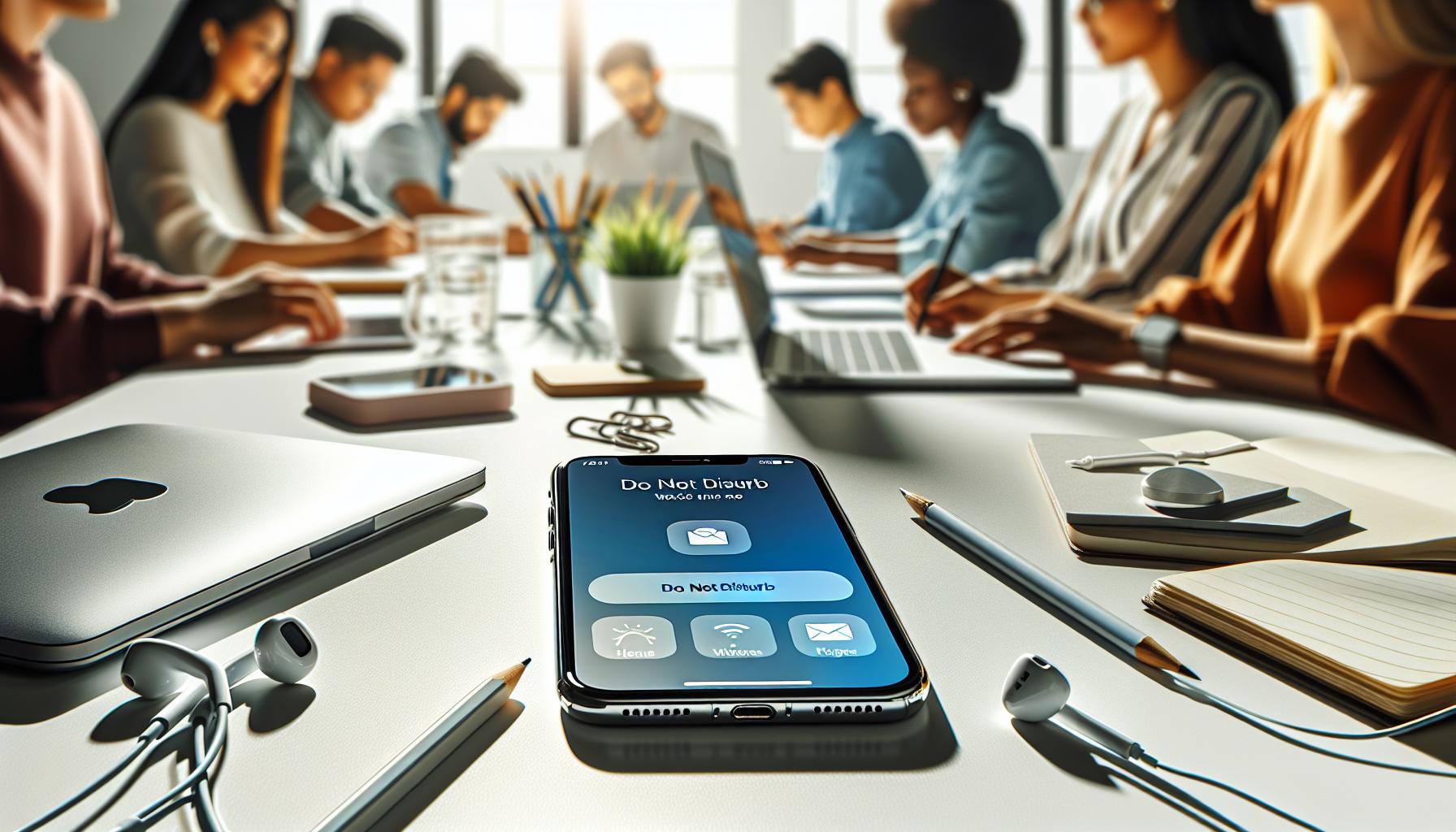
Quick Fixes for iPhone Do Not Disturb Problems
It’s frustrating when you expect peace and quiet from your device, only to find the Do Not Disturb (DND) feature not working properly. One common issue is accidentally toggling DND off, but there are easy ways to ensure it stays activated when you need it. Here are some quick fixes to resolve common problems with DND on your iPhone.
First, check your Focus settings. Apple has integrated DND into the broader Focus functionality, allowing you to create various profiles that may unintentionally interfere with each other. To avoid conflicts, head to Settings > Focus and ensure that the “Do Not Disturb” profile is activated without conflicting schedules. If you have set specific times for it to activate, confirm there are no overlapping conditions from other profiles that could turn it off prematurely.
Next, inspect your exceptions list for contacts and apps. Go to Settings > Focus > Do Not Disturb > People. Review the “Allow Notifications From” and “Allow Calls From” sections. If important contacts are included here, they can bypass DND, leading to unnecessary disruptions. Adjust these settings to ensure only essential contacts can break through.
Don’t forget to perform simple troubleshooting step like restarting your device. This can resolve temporary glitches that may cause DND to misbehave. Just hold down the power button and slide to power off, then turn it back on.
Lastly, check for software updates. Occasionally, a bug fix can resolve underlying issues with DND. Go to Settings > General > Software Update to ensure your device is running the latest version. Keeping your iPhone updated not only improves performance but also enhances security and functionality.
By following these straightforward steps, you can enhance the reliability of your Do Not Disturb feature, allowing for a more peaceful interaction with your device. Remember, technology is here to serve you, and understanding how to control it is empowering.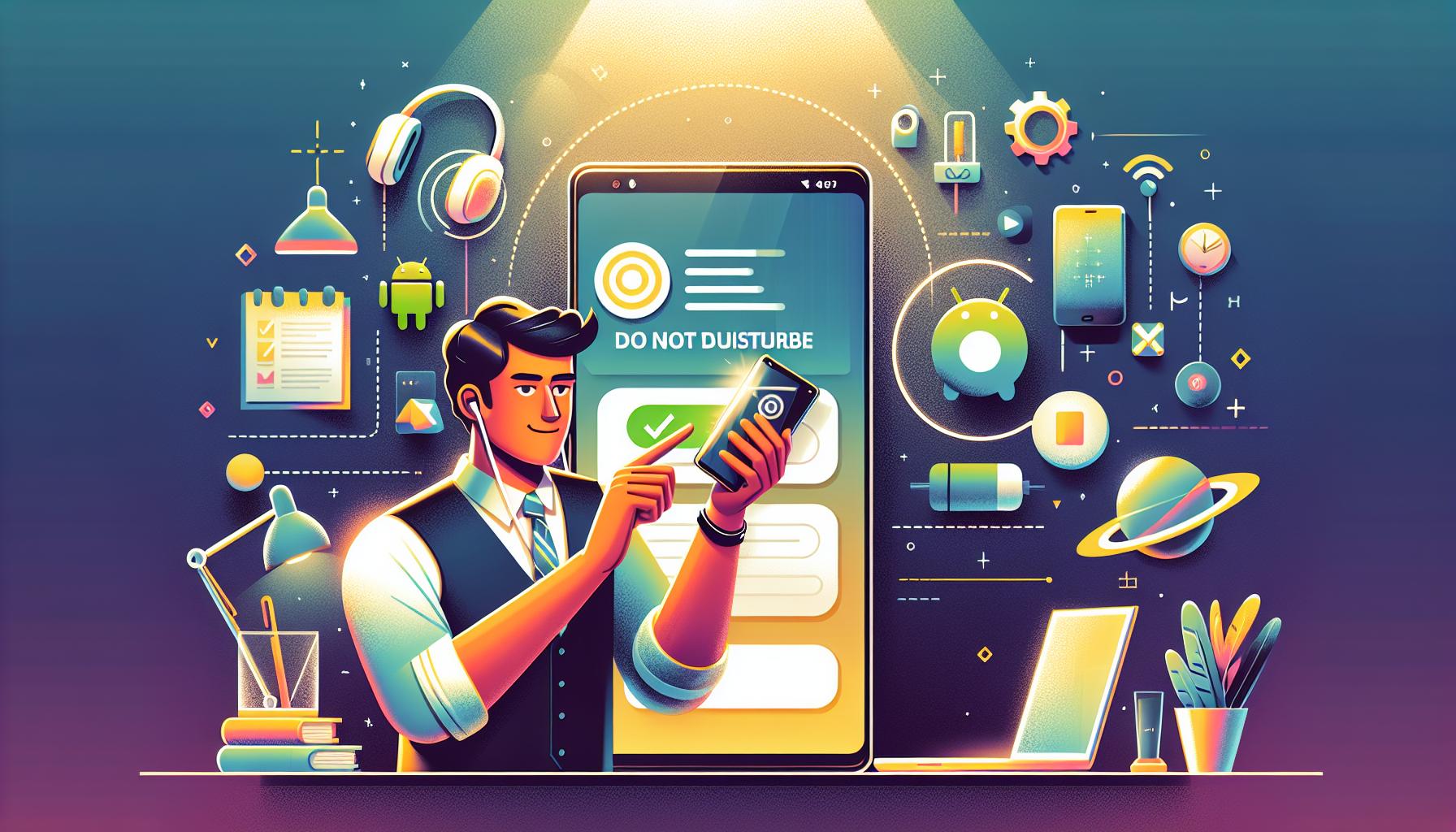
Troubleshooting Android Do Not Disturb Settings
In the fast-paced world we live in, it’s essential to have a little peace and quiet, especially when your device keeps buzzing with notifications. If you’re finding that the Do Not Disturb (DND) feature on your Android device isn’t consistently functioning as it should, there are several steps you can take to resolve these issues effectively.
First, examine your DND schedule by navigating to Settings > Sound & vibration > Do Not Disturb. Here, you can configure specific times when DND should automatically activate. Ensure that your DND settings aren’t conflicting with other scheduled events or modes, such as bedtime settings, which might inadvertently override DND during the times you want silence.
Also, check the exceptions you’ve set up. In the same DND settings menu, you’ll find options to allow certain contacts or apps to interrupt your DND. Review the list under Exceptions or Allow exceptions to ensure that only essential notifications can bypass DND. If you find unnecessary applications causing disruptions, remove them from the exceptions list to maintain a quieter environment.
If DND still doesn’t work as intended, a simple restart can often clear up any glitches that might be affecting functionality. Hold down the power button, select restart, and see if the issue persists. Additionally, ensure that your device runs the latest software version by checking Settings > System > Software update for available updates. Software updates often include bug fixes that can resolve problems with features like DND.
By following these steps, you can identify and remedy common issues that prevent the DND feature on your Android device from functioning correctly. Taking charge of your device’s settings allows you to create a more serene digital experience, ensuring you aren’t interrupted when you need a moment of peace.
Adjusting App Notifications to Maintain DND
In today’s fast-paced digital environment, managing notifications effectively is crucial for maintaining focus and peace of mind. If your Do Not Disturb (DND) feature is frequently disrupted, one of the first steps you should take is adjusting your app notifications. Many apps come with default settings that might not align with your preferences for DND, causing interruptions when you least want them.
Start by diving into your device’s settings to manually customize notification preferences for each app. On most devices, you can navigate to Settings > Apps or Notifications. From there, select specific apps that tend to send frequent notifications. You’ll often find options to either silence notifications completely or adjust their priority level. For instance, consider muting notifications from social media apps during your DND hours, while allowing important messaging apps to have lower priority notifications that can come through without causing distractions. This thoughtful curation will empower you to maintain a peaceful atmosphere without completely disconnecting from key communications.
Another effective method is using categories or channels if your device supports it. Many apps, especially messaging ones, allow you to choose how you want notifications to show up-whether as banners, alerts, or silent notifications. By setting the channels to ‘silent’ or ‘low priority’, you can ensure that while some updates come through, they won’t disturb you during essential times.
Lastly, remember to periodically review your notification settings. As apps update or your usage patterns change, what worked before might not be effective now. Keeping your notification landscape tailored will make it easier to rely on DND without constantly experiencing unexpected alerts. Take control of your digital environment by adjusting app notifications to better align with your desire for quiet moments, thus enhancing your overall well-being.
Understanding Priority Notification Settings
Understanding how priority notification settings function is crucial for maintaining your Do Not Disturb (DND) effectiveness. These settings allow you to finely tune which notifications can break through when DND is activated, ensuring that important messages aren’t lost amidst the noise of less critical alerts.
When configuring priority notifications, consider categorizing your contacts and apps based on their importance. For instance, urgent messages from family members or key work contacts might warrant a higher priority, allowing them to bypass DND. Many smartphones offer an option to create a “favorites” list or a similar feature where you can specify which contacts can reach you during DND. This can usually be found within the settings of your messaging or contact apps, letting you have peace of mind while still being reachable for critical communications.
Another layer to consider is the notification settings within individual apps. Many applications, especially messaging and productivity tools, allow you to set notification priorities directly in their settings. For example, you might set your email app to alert you for only high-priority messages while silencing promotional emails. This ensures that you electronically curate your communication without having to turn DND off entirely.
Furthermore, on both iOS and Android platforms, you can adjust how notifications are displayed (banners, alerts, sounds) according to their priority. Maintaining a balance between being informed and minimizing distractions is key. As you customize these settings, regularly revisiting them can enhance your DND experience, adapting as your personal and professional communication needs evolve. Doing so not only helps you enjoy a more tranquil environment but also empowers you to manage your digital interactions on your own terms.
Resetting Device Settings to Fix DND
Restoring your device settings can often be a game-changer when grappling with the elusive Do Not Disturb (DND) feature that seems to keep turning itself off. It’s surprisingly common for users to experience intermittent DND issues caused by various internal conflicts, software glitches, or accidental adjustments made in the settings. Resetting your device’s settings is a straightforward approach that can restore your DND functionality back to its intended effectiveness, allowing you to enjoy uninterrupted peace when you need it most.
How to Reset Device Settings
Before jumping into resetting everything, it’s crucial to differentiate between a full factory reset and a simple settings reset. A factory reset wipes all your data, while resetting settings only restores system settings to their defaults without erasing personal data like apps, photos, and contacts. Here’s how to perform a settings reset for both iOS and Android devices:
- For iOS Users:
- Open the Settings app.
- Go to General.
- Scroll down and select Transfer or Reset iPhone.
- Tap Reset and then choose Reset All Settings.
- Enter your passcode, if prompted, and confirm the reset.
- For Android Users:
- Open the Settings app.
- Scroll down and select System or General management depending on your device.
- Tap Reset options.
- Select Reset all settings or Reset network settings.
- Confirm the action and follow the on-screen instructions.
After the reset, it’s wise to revisit your DND settings. Check to ensure the feature is activated and customize your preferences according to your needs. This reset can often clear any hidden bugs or conflicts that were disrupting your DND mode, offering a fresh slate from which to work.
Potential Benefits
Resetting your settings can also help in identifying if other settings or apps were inadvertently causing issues with DND. For example, a third-party app might have permission to override your DND settings, and a reset will allow you to reassess such permissions post-reset. Remember that regular maintenance of your device settings is essential, as frequent updates can sometimes lead to unforeseen changes. Embracing these resets as part of your digital hygiene helps you stay in control of your device and minimizes disturbances when you’re focused on what matters.
Exploring Software Updates and Bug Fixes
Regular software updates play a vital role in maintaining the functionality of features like Do Not Disturb (DND). Both iOS and Android devices receive updates that not only introduce new features but also fix bugs and glitches that could interfere with existing functionalities. If you’ve noticed your DND feature acting erratically-turning off unexpectedly or failing to activate as scheduled-it may be a sign that an update is needed. Keeping your device updated ensures you benefit from the latest fixes that could resolve these frustrating issues.
For iOS devices, ensure you regularly check for updates by going to Settings > General > Software Update. Installing the latest version can rectify any known bugs that affect the DND function. Android users can find updates in Settings > System > System updates. These updates often contain essential patches for bugs that may have been causing problems with various features, including DND settings.
In addition to major OS updates, keep an eye out for app updates. Sometimes, third-party apps may interfere with your DND settings if they haven’t been updated in a while. App developers frequently issue patches to ensure compatibility with the latest OS versions and other apps, so regularly updating your apps can help maintain a smooth operation of your Do Not Disturb feature.
Remember, if you find your DND feature still malfunctioning after updates, consider consulting support forums or manufacturer help pages. Sometimes, known issues may surface after an update, and community members might offer timely fixes or temporary workarounds until the problem is addressed in a future update. Taking these proactive steps helps you harness the full power of your device, ensuring you can maintain peace when needed without disruptions.
Tips for Managing Do Not Disturb Effectively
Managing the Do Not Disturb (DND) feature on your device can significantly enhance your peace of mind during important activities or when simply seeking solitude. Understanding how to effectively configure and maintain this feature can ensure that you aren’t disrupted by calls, messages, or app notifications when you most need to focus or unwind. Here are some actionable tips to help you harness the power of DND.
Tailor Your DND Settings
Start by customizing your DND settings according to your specific needs. On both iOS and Android devices, you can fine-tune the duration and allow certain contacts to bypass the DND mode. For example, set DND to activate during your work hours or while you are sleeping, but permit calls from important contacts like family or your boss. This way, you can avoid unnecessary interruptions while still being reachable for urgent matters.
Utilize Scheduled DND
Scheduling your DND settings can help automate tranquility in your day-to-day life. On iPhones, navigate to Settings > Focus > Do Not Disturb and schedule it for specific times, like from 10 PM to 6 AM. Android users can access a similar feature in Settings > Digital Wellbeing & Parental Controls > Do Not Disturb. Automating DND frees you from having to remember to enable it manually, ensuring consistent relaxation periods.
Regularly Review App Notifications
Periodically check and manage the app notifications that might disrupt your DND experience. Some applications may require you to alter their notification settings individually. For apps where you want to remain undisturbed, set notifications to “silent” or minimize alerts, thereby enhancing the effectiveness of your DND mode. Remember, keeping your phone clean of unnecessary alerts contributes to a calmer life.
Be Mindful of Priority Notifications
Understanding and setting priority notifications are critical aspects of managing DND effectively. Most devices allow you to designate certain contacts or apps as “important,” which can send notifications even when DND is activated. For instance, you may want work emails to notify you while silencing social media alerts. This approach provides a balance, ensuring you’re informed of what truly matters while minimizing distractions.
By employing these strategies, you can create a DND environment that works harmoniously with your lifestyle, allowing you to enjoy uninterrupted peace while staying connected with essential contacts. Embrace these tips to turn DND into a powerful tool for managing your digital interactions effectively.
User Experiences: Do Not Disturb Challenges
In today’s fast-paced world, the Do Not Disturb (DND) feature serves as a crucial tool for maintaining focus and tranquility amidst the chaos of notifications. However, many users encounter frustrating experiences when their DND settings seem to turn off unexpectedly. This can lead to missed moments of peace and interruptions during critical tasks or relaxation periods.
Common frustrations often stem from a few shared scenarios. For instance, users frequently report that their devices ring or alert them during scheduled DND hours. This could be due to improperly set priority contacts or apps that are allowed to override DND. In many cases, misunderstood settings mean that certain people or notifications can still come through, defeating the purpose of DND entirely. For example, someone might have shared their DND settings with their workplace app, which notifies them regardless of the DND mode.
Others have noticed that their DND feature resets or malfunctions after software updates or device restarts. These experiences can leave users feeling helpless or overwhelmed, especially when technology doesn’t behave as anticipated. The complexity of different device operating systems can also lead to confusion as users navigate various settings, each with its quirks and limitations.
To tackle these challenges, users are encouraged to engage in trial-and-error with their DND settings, reviewing allowed notifications and ensuring that updates are applied correctly. By staying informed about their device’s capabilities and periodically reviewing settings, such as adjusting priority notifications and scheduling, users can regain control over their DND experience. Sharing these experiences within communities can also lead to practical solutions that resonate with others facing similar dilemmas, fostering a collaborative space to troubleshoot and enhance the effectiveness of DND features.
When to Seek Professional Help for DND Issues
Navigating the complexities of digital settings often feels like wandering through a maze, especially when a critical feature like Do Not Disturb (DND) isn’t functioning as expected. If you’ve tried troubleshooting various settings and still find that DND keeps turning off, it may be time to seek professional help. Understanding when to take this step can ease your frustration and help restore the peace you deserve.
There are several scenarios where professional assistance becomes necessary. If you’ve exhausted all troubleshooting options without success-such as adjusting your notification settings, checking for software updates, or even resetting your device-it’s a clear sign that something deeper may be wrong. Device malfunctions can stem from software bugs that require expert intervention. Similarly, if your DND feature is inconsistently functioning across multiple devices, it may indicate a more widespread issue needing advanced diagnostics.
Another important instance to consider seeking help is when your device’s DND settings appear to change spontaneously, potentially indicating a software glitch or a hardware malfunction. If your phone experiences abnormal behavior, like crashing or slow performance alongside your DND challenges, it’s strongly advisable to consult with a certified technician or reach out to your device manufacturer’s support team. They can help run diagnostics and determine whether your device needs repairs or a factory reset.
Lastly, consider that device updates or technician repairs can also bring about changes to settings that may inadvertently affect your DND preferences. If you’re not fully confident in navigating these adjustments, a professional can not only fix the immediate issues but also educate you on maintaining stability and understanding the intricacies of your device settings, empowering you to handle future tech challenges with confidence. By taking this proactive step, you can reclaim control over your notifications and find the tranquility you need.
Frequently Asked Questions
Q: Why does my Do Not Disturb keep turning off automatically?
A: Your Do Not Disturb (DND) may turn off automatically due to scheduled settings, app conflicts, or system updates. Check if you have any automation enabled under “Focus” settings. Also, review installed apps for settings that might override DND, as detailed in the troubleshooting section of the article.
Q: How can I stop my Do Not Disturb from being interrupted by certain contacts?
A: To prevent interruptions, go to your DND settings and manage allowed notifications. Ensure only essential contacts are permitted while DND is active. For more details, see the section on adjusting app notifications to maintain DND.
Q: Are there specific apps that can disable Do Not Disturb?
A: Yes, some apps may have settings that can override DND, particularly messaging and social media apps. Check their notification settings and permissions to ensure they align with your DND preferences.
Q: What should I do if my Do Not Disturb feature is not functioning correctly?
A: If DND isn’t working, try restarting your device, checking for software updates, or resetting device settings. Detailed troubleshooting steps are provided in the article to help fix these issues.
Q: Can Do Not Disturb settings vary between devices?
A: Yes, DND functionalities can differ between devices and operating systems. It’s essential to reference the specific guides for iPhone and Android as described in the article to optimize DND settings accordingly.
Q: How often should I update my phone to improve Do Not Disturb performance?
A: Regularly updating your phone can enhance performance, including DND. Check for updates monthly to ensure you have the latest bug fixes and features, which may improve overall functionality.
Q: Is there a way to temporarily disable Do Not Disturb without changing settings?
A: Yes, you can often temporarily disable DND by accessing quick settings or notifications on your device’s menu. This allows for instant removal without altering your main DND settings.
Q: How do I report issues with the Do Not Disturb feature?
A: If you continue experiencing issues with DND despite troubleshooting, consider reporting the problem to your device manufacturer’s support. They can provide specific solutions or alerts regarding known bugs.
The Conclusion
If you’ve been struggling with your “Do Not Disturb” feature deactivating unexpectedly, we’ve provided the essential fixes to help you regain control over your notifications. Remember, understanding your device settings can significantly enhance your user experience. If you’re interested in exploring more about optimizing your settings, check out our guides on Managing Notifications Effectively and Top Mobile Settings for Quiet Time. For those eager to dive deeper, consider subscribing to our newsletter for the latest tips and tricks on maximizing your device’s functionality.
Don’t let distractions hinder your focus any longer-implement these solutions today to enjoy uninterrupted peace. Have questions or additional tips? Join the conversation in the comments below, and share your experiences! Your insights could help someone else facing the same issue. Explore our site for additional support and resources; your next tech breakthrough is just a click away!


