
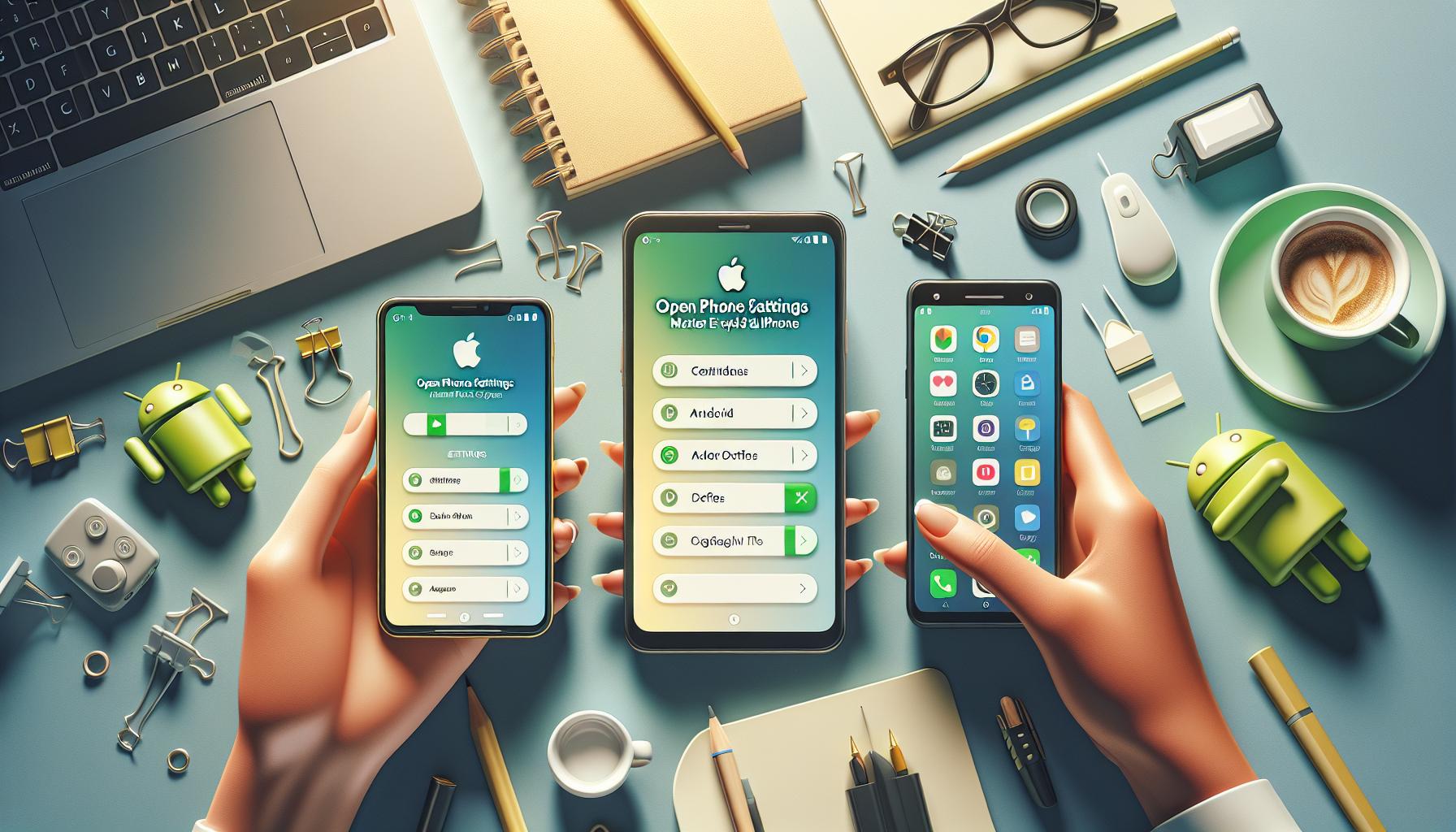

In today’s digital age, understanding how to navigate the settings on your Android or iPhone can significantly enhance your device experience. Did you know that mastering these settings allows you to customize everything from notifications to privacy controls? With just a few simple steps, you can optimize your phone for better performance, increased security, and personalized functionality.
Whether you’re struggling with battery life, app organization, or privacy concerns, knowing how to access and adjust your phone settings can make a world of difference. This guide will empower you with the skills to troubleshoot issues, safeguard your data, and tailor your smartphone to fit your unique needs. By the end, you’ll have the confidence to explore every option and make your device truly yours. Let’s dive in and unlock the potential of your phone settings!
Open Your Phone: A Beginner’s Guide to Settings
Unlocking the power of your smartphone starts with understanding its settings. Regardless if you own an Android or an iPhone, becoming familiar with the various options at your fingertips can dramatically enhance your experience. Each device offers a unique menu of settings that allow you to personalize everything from notifications to security options, making your phone truly your own.
For Android users, accessing settings is straightforward. Simply swipe down from the top of your screen to reveal the quick settings panel, where you can manage Wi-Fi, Bluetooth, and more with just a tap. To dive deeper, head to the Settings app, where you’ll find categories like “Network & Internet,” “Device,” and “Accounts.” Within these sections, you can customize various features including display settings, battery optimization, and app management, empowering you to tailor your device to fit your lifestyle.
iPhone users, on the other hand, can access their settings by tapping the gear icon on the home screen. The Settings app provides an organized layout where you can adjust everything from privacy settings to accessibility features. For example, consider toggling Night Shift for eye comfort or customizing your notifications to reduce distractions. Don’t forget to check the “Screen Time” feature, which can help you manage device usage and promote healthier habits.
By taking the time to explore and adjust these settings, you’ll not only make your device more functional for your personal needs but also gain confidence in navigating the digital landscape. Don’t hesitate to experiment with different options and discover the full potential of your smartphone, transforming it into a powerful ally in your daily life.
Understanding Android Settings: Essential Features
Navigating the settings on your Android device can feel overwhelming at first, but understanding the essential features can significantly enhance your user experience. Android offers a robust array of options designed to tailor your phone to fit your preferences and lifestyle. One of the best ways to start is by familiarizing yourself with the core components of the settings menu and how they can be leveraged to improve functionality.
To access the settings, swipe down from the top of your screen to reveal the Quick Settings panel. Here, you can manage fundamental tasks like toggling Wi-Fi, Bluetooth, or Do Not Disturb mode. For deeper customization, tap on the gear icon to enter the full Settings app. Within this comprehensive section, you will encounter notable categories such as:
Network & Internet
This section is where you can manage your connectivity options. In addition to turning Wi-Fi and mobile data on or off, you can connect to VPNs and manage your data usage. It’s also wise to explore the Wi-Fi preferences and advanced settings to ensure you’re connected to secure networks.
Display Settings
The display settings allow you to adjust brightness, screen timeout, and even switch on features like Night Mode, which can reduce eye strain during the evening. You might also want to check out the ‘Font Size’ and ‘Screen Zoom’ options for enhanced readability, making your device accessible regardless of your visual comfort.
Sound & Vibration
Customize your sound settings by adjusting ringtones, notification tones, and vibrations. This will help you create a more personalized auditory experience to suit your environment and preferences.
Privacy and Security
With privacy being a critical concern nowadays, make sure to explore the security settings. This includes enabling features like fingerprint unlocking, face recognition, and setting app permissions to have control over what personal data apps can access. With Android 13, you can also fine-tune your app permissions for greater transparency about what information is being shared<[[1]].
By taking the time to explore these essential features, you can truly make your Android device feel like it’s designed specifically for you. Don’t hesitate to experiment with different settings and configurations; the more you engage with your device, the more proficient you will become at leveraging its full potential. Each tap into the settings can unlock a new layer of functionality that enhances your everyday interaction with your phone.
Exploring iPhone Settings: Must-Know Options
Navigating the settings on your iPhone can unlock a world of personalized features that enhance your experience while using the device. Apple’s iOS environment offers intuitive settings that cater to both novice and seasoned users alike. By exploring the various options available within the Settings app, you not only customize your iPhone but also improve your device’s security and performance.
One of the first areas to explore is General Settings, where you’ll find a host of essential options to refine your iPhone’s functionality. Here, you can manage software updates, accessibility features, and even how your iPhone interacts with other devices through AirDrop and Handoff. Additionally, under About, you can quickly check your storage usage, identify your model, and ensure your software is up-to-date.
Next up is Display & Brightness, a must-visit for anyone looking to reduce eye strain or improve readability. You can toggle between Light and Dark Modes, adjust the brightness, and enable Night Shift, which reduces blue light exposure in the evenings. These settings not only help in customizing the look of your device but also promote better sleep and comfort during use.
In terms of Privacy & Security, iPhone settings empower users with controls over app permissions and data sharing. It’s crucial to periodically review which apps have access to your location, contacts, and other sensitive information. This can be found under Privacy, where you can also enable features like Find My iPhone and Face ID/Touch ID for added security.
Managing notifications is equally important. Within the Notifications section, you can decide how and when you want to be alerted for each app. This includes customizing sounds, setting up banners, and even allowing notifications to appear on the lock screen. By organizing your notification preferences, you can minimize disturbances and focus on what truly matters throughout your day.
These settings are just the tip of the iceberg. By investing some time into your iPhone’s Settings app, you can tailor every aspect of your experience. Remember, the more you familiarize yourself with these options, the better equipped you’ll be to make your iPhone truly your own.
Personalizing Your Device: Customization Tips
Personalizing your device can transform your smartphone from a generic tool into an expression of your individuality and style. Both Android and iPhone platforms offer a plethora of options that allow for significant customization, making your experience not just functional but truly personal.
One of the easiest ways to get started is by changing your wallpapers. Not only does this update the aesthetic of your home and lock screens, but many devices also allow you to set different wallpapers for each. You can explore various themes that reflect your mood or interests, from serene nature landscapes to vibrant patterns. In addition to wallpapers, consider customizing your icons or even the entire interface using third-party launchers on Android. These launchers can offer stunning visual effects and functional widgets that keep your most-used apps just a swipe away.
Widgets and Shortcuts
Utilizing widgets is another powerful way to personalize your device. Widgets can provide at-a-glance information like weather updates or calendar events, making your home screen not only beautiful but functional. Take advantage of the customizable widget sizes available on your device to create a visually appealing layout that speaks to your usage patterns. On iPhones, adding shortcuts allows you to automate tasks. For example, you can set a “Good Night” shortcut that dims the lights, sets your alarm, and puts your phone in Do Not Disturb mode.
Colors and Themes
Themes and colors can also play a crucial role in personalizing your device. Android devices, particularly, allow users to change themes completely, affecting lock screen designs, notification panels, and more. Experiment with light and dark modes, which not only look appealing but can also conserve battery on OLED screens. Additionally, many phones offer further customization of colors in the settings, allowing you to set the accent colors and styles that best suit your taste.
Remember, personalization is about making your device work for you, so feel free to explore the settings and find what adjustments resonate with your lifestyle. By discovering ways to adapt your phone’s appearance and functionality, you can enhance your overall interaction with it, making everyday tasks a little more enjoyable.
Privacy Matters: Adjusting Security Settings
Your smartphone holds a treasure trove of personal information, from photos and contacts to financial details and private conversations. The way you manage and adjust your security settings can mean the difference between keeping your data safe and letting it fall into the wrong hands. Understanding how to navigate these settings is essential for anyone keen on protecting their digital privacy.
On Android devices, accessing security settings is straightforward. Start by opening the Settings app and navigating to Security & privacy. Here, you can enhance your device’s protection by enabling features like Device Lock, Fingerprint Unlock, or Face Recognition. These biometric options add an extra layer of defense, making unauthorized access much harder. Additionally, consider activating Theft Protection settings, which can lock your device if it detects suspicious activity. For example, if your phone is turned off or its location services are disabled immediately after being reported lost, it can automatically lock, securing your data until you retrieve it [1[1].
Beyond basic locks, app permissions play a critical role in privacy management. Each app requests different permissions, such as access to your location, camera, or contacts. Stay vigilant by regularly reviewing these permissions under the Apps section in the settings. You can revoke access if you find that an app is asking for more than it needs. This not only minimizes data exposure but also enhances overall device performance as fewer apps run in the background. If you’re using Android 13 and up, the Privacy dashboard provides a handy overview of which apps have accessed your information recently, allowing you to make informed decisions about each one [2[2].
When it comes to iPhones, the process is similarly straightforward. Under Settings, tap Privacy & Security to set up your privacy parameters. iOS provides comprehensive options, including Location Services, where you can decide if apps can use your location continuously or only when you are using them. With features like App Tracking Transparency, you can control which apps are allowed to track your activity across other apps and websites, giving you greater control over your online footprint.
Regularly adjusting these settings not only protects your information but also enhances your overall device experience. By taking a proactive approach to securing your smartphone, you empower yourself to enjoy its capabilities without the constant worry of potential breaches or unwanted access. Prioritize privacy today, and make these adjustments a part of your regular device maintenance routine.
Notifications Management: Take Control of Alerts
Being inundated with notifications can quickly turn your smartphone experience from enjoyable to overwhelming. Thankfully, both Android and iPhone devices offer robust settings to help you manage alerts effectively, allowing you to focus on what truly matters. By customizing notifications, you can enhance your productivity and reduce distractions, making your device work for you rather than against you.
On Android devices, managing notifications is straightforward. Start by accessing the Settings app and navigating to Notifications. Here, you can see a comprehensive list of apps and their notification settings. For each app, you can adjust various options, including turning off notifications entirely or choosing a specific sound for alerts. Additionally, the Advanced Settings section allows you to manage notification categories for each app, which means you can prioritize crucial alerts while silencing less important ones. Want to see only essential reminders and stay unplugged from social media dings? Simply toggle off those notifications to regain your peace of mind [[1](https://www.samsung.com/us/support/answer/ANS10002521/)].
For iPhone users, the process is similarly user-friendly. Open the Settings app, then select Notifications. Here, you will find all the apps that can send alerts. Tap on the app of your choice, and you can choose whether to allow notifications, customize alert sounds, and even adjust how they appear on your lock screen and in notifications center. For instance, you can set notifications to appear as banners or alerts, giving you control over how intrusive they may be [[2](https://support.apple.com/guide/iphone/change-notification-settings-iph7c3d96bab/ios)].
Additionally, both platforms allow you to manage notifications directly from the notification itself. On Android, you can long-press a notification to access settings for that specific app, while iPhone users can swipe left on a notification and then select Manage to customize alerts right from the notification interface. Taking advantage of these features not only keeps your alerts organized but also empowers you to quickly adjust settings without delving deep into menus [[3](https://support.google.com/android/answer/9079661?hl=en)].
By mastering notification settings on your device, you’ll be better equipped to maintain focus and enjoy a more personalized smartphone experience. With just a few adjustments, you can ensure that every alert is meaningful, allowing your device to serve your needs effectively.
Connectivity Settings: Wi-Fi, Bluetooth, and More
Establishing a reliable connection can elevate your smartphone experience tremendously, transforming how you interact with the digital world. From streaming your favorite shows to video calling friends, mastering connectivity settings is crucial. Both Android and iPhone devices come with user-friendly options that help you manage these aspects seamlessly, ensuring you stay connected when it matters most.
To connect to Wi-Fi on an Android device, open the Settings app, navigate to Network & internet, and then tap Wi-Fi. Here, you can view available networks. Simply select your preferred network, enter the password if prompted, and connect. If you often switch networks at home or work, consider enabling the feature that allows your device to automatically connect to saved networks [[1](https://support.google.com/android/answer/9075847?hl=en)].
Bluetooth Connections: Pairing Made Simple
Bluetooth technology allows you to connect your phone to various devices, such as headphones, speakers, and fitness trackers. Enabling Bluetooth on an Android device is as easy as going to the Settings app, selecting Connected devices, and toggling Bluetooth on. Then, choose Pair new device to scan for nearby devices. For iPhones, simply open the Settings app, tap on Bluetooth, and toggle it on. Afterward, your phone will search for available devices [[2](https://www.samsung.com/us/support/answer/ANS00089062/)].
Managing Wi-Fi and Bluetooth connections effectively can greatly simplify your daily interactions with technology. For instance, if you’re in a crowded area where Wi-Fi connections are unstable, switching to mobile data can ensure a smoother experience while browsing the web or using apps. Additionally, when not using Bluetooth devices like headphones, turn off Bluetooth to save battery life. Engaging with these settings allows you to customize your device according to your lifestyle needs.
With these connectivity options at your fingertips, you have the power to enhance your smartphone experience significantly. Whether it’s streaming high-quality audio or maintaining a strong internet connection, getting familiar with these settings ensures you’re always connected in the ways that matter most to you.
Battery Optimization: Prolonging Your Phone’s Life
One of the most frustrating experiences for smartphone users is the dreaded low battery warning. The good news is that both Android and iPhone devices come equipped with features to help you maximize battery life and minimize the frequency of charging. Understanding how to optimize your phone’s battery can not only prolong your device’s lifespan but also enhance your user experience by ensuring it’s ready when you need it most.
To get started, take a look at your battery settings. On Android devices, you can access these by opening the Settings app, selecting Battery, and then Battery usage. This section shows you which apps are consuming the most power and allows you to take action. You can choose to limit background activity for energy-hungry applications or turn off location services for specific apps that you don’t always need. Similarly, on iPhones, navigate to Settings, then tap on Battery to view detailed usage stats and manage battery-sapping features.
Power-Saving Modes
Both platforms offer built-in power-saving modes that adjust settings automatically to extend your battery life further. On Android, simply access the Battery settings and select Battery Saver. This will disable background data, reduce performance, and limit certain notifications. For iPhone users, head to Settings > Battery and enable Low Power Mode, which temporarily reduces background activities and visual effects.
Screen Brightness and Timeout
Another significant factor in battery consumption is screen brightness and timeout settings. Lowering your screen brightness and reducing the screen timeout duration can lead to noticeable improvements in battery longevity. On both Android and iPhone, you can adjust these settings in the display options. For optimum savings, consider enabling adaptive brightness, which automatically adjusts your screen brightness based on ambient light conditions, ensuring you aren’t using extra battery power when it isn’t necessary.
Connectivity Management
Lastly, managing your connectivity features is vital for conserving battery life. Turn off Bluetooth, Wi-Fi, and mobile data when they are not needed to prevent constant searching for connections, which can drain your battery. On both platforms, you can easily toggle these features from the quick settings menu or control center.
By employing these strategies and settings adjustments, you’ll find that you can effectively extend your smartphone’s battery life, ensuring that it stays powered through your busy day. With just a little attention to your settings, you can enjoy your device more without the constant worry of battery life.
Accessibility Features: Making Your Phone Inclusive
In today’s digital world, smartphones are essential tools, but for many users, navigating them can be a challenge without the right accessibility features. Both Android and iPhone devices are designed with inclusivity in mind, ensuring that everyone can make the most of their technology, regardless of their abilities. Familiarizing yourself with these features not only enhances usability but also empowers users to take full control of their devices.
Types of Accessibility Features
Both platforms provide a rich array of tools to assist users. Here’s an overview of some key features:
- Voice Assistants: Google Assistant and Siri can help with hands-free navigation, setting reminders, and answering questions, making it easier for users to interact with their devices without physical input.
- Screen Readers: Tools like TalkBack on Android and VoiceOver on iOS read aloud the content displayed on your screen, making it accessible for visually impaired users.
- Magnification: Both systems offer options to zoom in on content, allowing users to enlarge text and images for better visibility. On Android, this can be found under Settings > Accessibility > Magnification; on iPhone, look in Settings > Accessibility > Zoom.
- Hearing Options: For users with hearing impairment, Android and iPhone both include features like Live Transcribe and captions for video calls, respectively, ensuring communication remains accessible.
- Text-to-Speech: Users can enable text-to-speech options to have written text read aloud, which is beneficial for those who may struggle with reading.
- Customizable Display: Adjust contrast, color settings, and text size for better readability. Both platforms support high-contrast modes and display adjustments to suit users’ preference.
How to Enable Accessibility Features
Getting started with these accessibility options is simple. Here’s how you can enable them on your device:
- For Android:
– Open the Settings app and select Accessibility.
– Browse through the features available, like TalkBack or Magnification, and toggle them on.
- For iPhone:
– Go to Settings, then tap on Accessibility.
– Explore sections like VoiceOver or Zoom and toggle the options relevant to your needs.
Personalizing Accessibility Settings
Each user’s needs can vary, so it’s essential to tailor these features to your liking. Adjust settings like text size, screen brightness, or color filters for optimum comfort. With both Android and iPhone, you can create shortcuts to quickly access your frequently used accessibility features, enhancing your experience even further.
Encouraging inclusivity through technology means that everyone can harness the potential of their devices, making communication, information access, and daily tasks more manageable than ever. Whether you’re a beginner or an experienced user, these tools will elevate your smartphone experience, ensuring that your device works for you, not against you.
App Permissions: Safeguarding Your Data
When you install a new app on your smartphone, it often prompts you to grant various permissions, from accessing your camera to reading your contact list. These permissions can impact your personal data security, and understanding how to manage them is crucial for protecting your privacy. Both Android and iPhone devices provide intuitive settings to help you safeguard your data while still enjoying the benefits that different applications offer.
To customize app permissions effectively, start by reviewing what each app is requesting upon installation. Be cautious of apps that ask for access to information that isn’t necessary for their primary functions. For example, a simple photo editing app probably doesn’t need your location data. Adjusting these settings can ensure that apps only access the information they truly need, reducing the risk of data misuse.
How to Manage App Permissions on Android
If you’re using an Android device, managing app permissions is straightforward:
- Open the Settings app.
- Tap on Apps & notifications or simply Apps (varies by device).
- Select the app you want to review permissions for.
- Tap on Permissions and toggle off any access you feel is inappropriate or unnecessary.
It’s helpful to periodically reassess your permitted app permissions, especially after updates, as apps may request new permissions that weren’t initially granted.
How to Manage App Permissions on iPhone
For iPhone users, managing permissions is just as simple:
- Open the Settings app.
- Scroll down to find the app you want to review or tap on Privacy for a list of categories.
- Select the relevant category (Camera, Location Services, etc.) to see which apps have access.
- Toggle off access for any apps you wish to limit.
By regularly reviewing and updating app permissions on both Android and iPhone, you can help protect your personal information. Treating app permissions like a security check ensures that only trusted apps can access sensitive data, providing you with a sense of control and peace of mind as you navigate your digital life. This proactive approach not only enhances your privacy but also fosters greater confidence in using your smartphone.
Advanced Settings for Power Users
Unlocking the full potential of your smartphone often lies within the advanced settings that many users overlook. Power users understand that diving deeper into settings can significantly enhance performance, customization, and functionality. Whether you’re an Android aficionado or an iPhone enthusiast, getting familiar with these intricate features can transform your device into a personalized powerhouse.
Fine-Tuning Android Settings
For Android users, the depth of customization is impressive. Access advanced settings by navigating to Settings > System > Developer options. Here, you can tweak various features, such as:
- Animation Scale: Speed up your device by reducing or turning off animations – this can make the interface feel snappier.
- Background Process Limit: Control how many processes run in the background to boost performance on lower-end devices.
- USB Debugging: Allow your phone to communicate with your computer for development purposes or advanced troubleshooting.
Remember to exercise caution in this section; changes here can significantly affect how your device operates.
Diving into iPhone Features
iPhone users benefit from a robust set of features found in the Settings > Accessibility menu. Here are powerful options that can tailor your experience:
- Voice Control: Control your iPhone hands-free, enabling you to navigate the interface and interact with apps using your voice.
- Back Tap: Assign custom actions to double or triple taps on the back of your iPhone, providing quick access to functions like screenshots or opening the camera.
- Text Size and Bold Text: Adjusting text size and enabling bold text can improve readability, particularly for those with visual impairments.
Power users know that the key to a seamless smartphone experience lies in personalization. By harnessing these advanced settings, you gain not just efficiency but also a sense of ownership over your device. Exploring these options helps you make informed decisions about how you interact with your smartphone daily, ensuring it serves you in the best way possible. Empower yourself with these tips, and enjoy the enhanced functionality of your device!
Troubleshooting Common Phone Settings Issues
Navigating smartphone settings can sometimes feel overwhelming, but troubleshooting common issues can empower you to regain control over your device. It’s essential to approach these challenges with a sense of curiosity, knowing that many problems have simple solutions. Whether you’re using an Android or an iPhone, understanding how to address frequent settings issues can enhance your overall experience.
One of the most frequently encountered problems is app malfunction. If an app crashes or fails to open, start by clearing its cache. For Android devices, go to Settings > Apps, select the problematic app, and choose Storage > Clear Cache. For iPhone users, visit Settings > General > iPhone Storage and locate the app to offload or delete it, then reinstall it for a fresh start. This often resolves performance issues without losing your data.
Another common issue involves connectivity problems, particularly with Wi-Fi and Bluetooth. If you experience difficulty connecting to networks, forget and reconnect to the network by heading to Settings > Wi-Fi on both Android and iPhone. For Bluetooth issues, ensure that the devices are within range and that Bluetooth is enabled in Settings > Bluetooth; if the connection still fails, try resetting your network settings through Settings > System > Reset options on Android or Settings > General > Transfer or Reset iPhone > Reset > Reset Network Settings on iPhone.
Lastly, for persistent issues like battery draining too quickly, delve into Settings > Battery to identify apps that consume excessive power. On Android, you can restrict background activity for those apps, while iPhone allows you to manage background app refresh in Settings > General > Background App Refresh. Regularly checking these settings can streamline your device’s performance and extend battery life.
By becoming familiar with these troubleshooting tactics, you can resolve many common issues swiftly and effectively, leading to a smoother, more enjoyable smartphone experience. Embrace these solutions, and know that mastering your device’s settings is a journey that increases your confidence and capability as a user.
Frequently asked questions
Q: How do I reset my phone settings to default on Android?
A: To reset your phone settings to default on Android, go to Settings, select System, then tap on Reset options. Choose Reset all settings, and confirm your action. This will restore settings like Wi-Fi, mobile networks, and app preferences without deleting personal data. For detailed steps, see the section on “Troubleshooting Common Phone Settings Issues.”
Q: What are hidden features in iPhone settings that I should know about?
A: Hidden features in iPhone settings include Hidden Album in Photos, Optimize Storage for music, and Night Shift for reducing blue light at night. Explore these under Settings > Photos, Music, and Display & Brightness respectively. Discover more in the “Exploring iPhone Settings” section of the article.
Q: How can I optimize battery usage on my iPhone?
A: To optimize battery usage on your iPhone, enable Low Power Mode in Settings > Battery, close unused apps, and reduce screen brightness. Additionally, turn off background app refresh for non-essential apps in Settings > General > Background App Refresh. More tips are available under “Battery Optimization.”
Q: Where can I manage app permissions on Android?
A: To manage app permissions on Android, go to Settings > Apps, select the specific app, and tap on Permissions. Here, you can grant or revoke access to features like location, camera, and storage. For a deeper understanding, check the “App Permissions” section of the article.
Q: Why is it important to customize notification settings on my phone?
A: Customizing notification settings is important to reduce distractions and prioritize critical alerts, ensuring that important messages are not missed. Access these settings under Settings > Notifications on both Android and iPhone. Learn more about managing notifications in the dedicated section of the article.
Q: How do I set up accessibility features on my Android phone?
A: To set up accessibility features, go to Settings > Accessibility. Here, you can enable options like TalkBack for screen reading, Magnification for zoom, and Color inversion for better visibility. The “Accessibility Features” section of the article provides additional insights.
Q: What should I do if I can’t find a setting on my iPhone?
A: If you can’t find a setting on your iPhone, use the Search bar at the top of the Settings app. You can also refer to the Siri feature by asking, “Where is [setting]?” This tool simplifies navigating settings, as discussed in “Open Your Phone: A Beginner’s Guide to Settings.”
Q: How can I secure my Android phone effectively?
A: To secure your Android phone effectively, enable Screen lock, use Find My Device to locate lost phones, and turn on Google Play Protect under Security settings. Regularly reviewing your security settings is vital for maintaining privacy. Explore more in the “Privacy Matters” section of the article.
In Summary
Congratulations on mastering the essential settings for both Android and iPhone! You’ve unlocked the potential to enhance your device’s performance and tailor it to your preferences. If you’re eager to dive deeper, check out our articles on “Unlocking Hidden Features on Your Smartphone” and “Essential Apps to Optimize Your Phone’s Settings” for even more tips.
Remember, staying updated on your device’s capabilities will not only improve efficiency but also keep you ahead in the tech game. Don’t forget to subscribe to our newsletter for the latest insights and guides that empower you on your digital journey. Have questions or experiences to share? We’d love to hear your thoughts in the comments below. Keep exploring, and let your phone work smarter for you!


