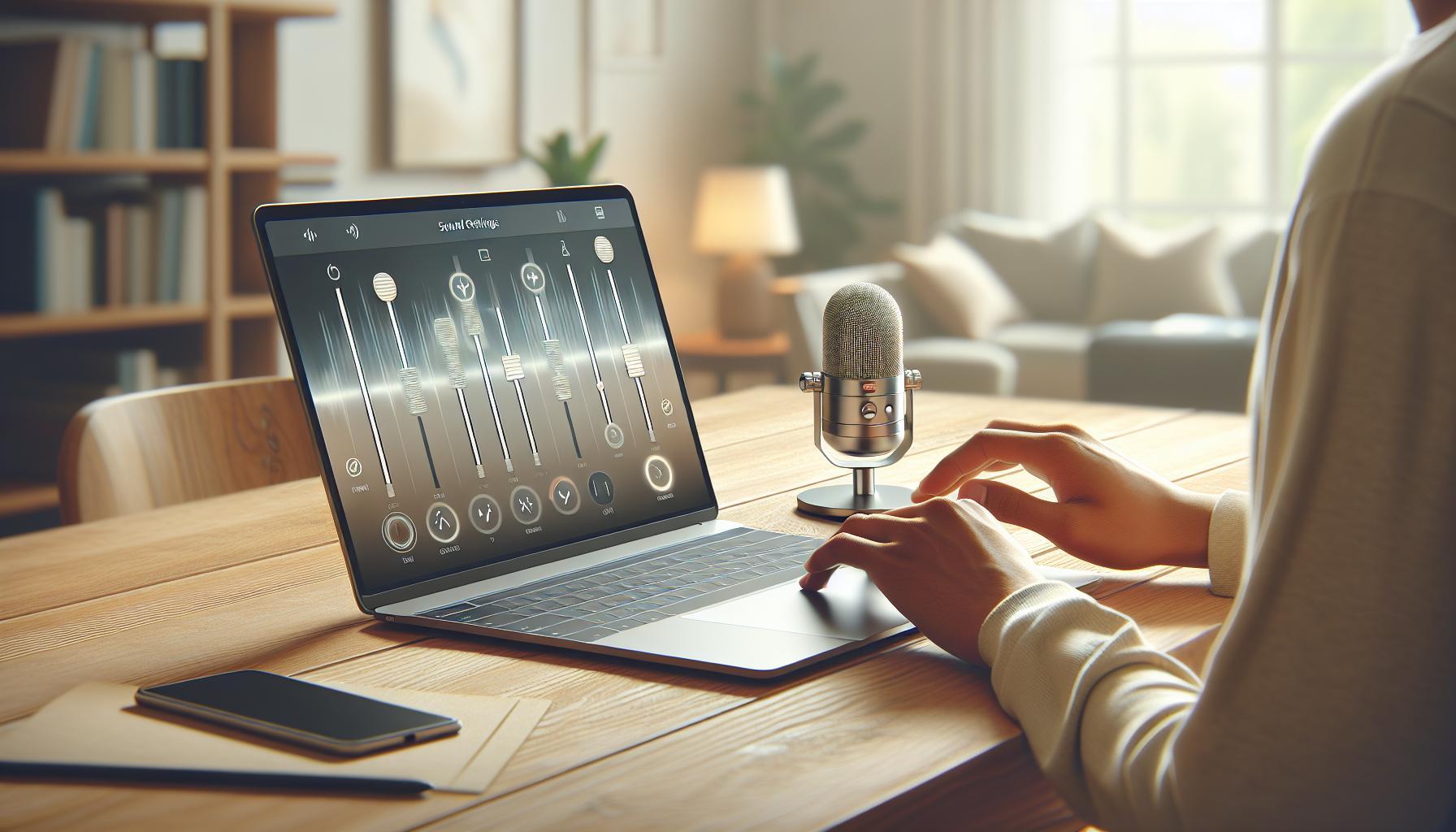

Many users find themselves struggling with low microphone volume on Windows 10, whether for gaming, virtual meetings, or recording. Did you know that adjusting your microphone settings properly can significantly enhance your audio quality, making your voice clearer and more impactful?
In this guide, you’ll discover simple, effective methods to boost your microphone’s volume, ensuring you’re heard loud and clear. We’ll explore straightforward adjustments in your system settings, as well as tips to improve performance for those crucial online interactions. Whether you’re new to technology or a seasoned user, our step-by-step instructions will empower you to take full control of your audio experience. Keep reading to transform your microphone setup!
Understanding Microphone Volume Issues on Windows 10
Microphone volume issues on Windows 10 can arise from various factors, impacting everything from casual calls with friends to professional recordings. Understanding the common culprits behind low microphone volume can significantly enhance your experiences across applications such as Zoom, Skype, or during streaming sessions. The sensitivity of your microphone and how it interacts with your system settings play crucial roles in determining how loud your voice comes across to others.
A big factor contributing to low volume is often found within the operating system settings. Many users might overlook default configurations, which can limit microphone performance right out of the box. For instance, improper input level settings (which might be set way too low) can cause your voice to be barely audible, or even muted in some cases. Additionally, user-selected enhancements and effects that might be intended to improve audio quality can sometimes inadvertently decrease the volume.
Consider also the variations between different microphones. Some devices, especially built-in laptop microphones, may lack the capability for higher input volume compared to external options. Thus, recognizing how equipment impacts audio quality is essential: internal microphones typically have less sensitivity, while external ones can provide a clearer, louder signal. Users aiming for better microphone volume should not only adjust system settings but also consider investing in quality devices suited for their specific needs. By being mindful of these aspects, users can troubleshoot and improve their microphone volume effectively.
In summary, means recognizing system settings, exploring hardware capabilities, and knowing how various factors, both internal and external, can impact your audio experience.
Essential Settings for Boosting Microphone Volume
To transform your microphone experience on Windows 10 and achieve a substantial boost in volume, it’s essential to navigate your system settings effectively. Many users are unaware that slight adjustments can lead to noticeable improvements in audio clarity. Start by accessing the Sound settings: right-click the speaker icon on the taskbar and select ‘Sounds.’ From there, click on the ‘Recording’ tab, where you will see a list of available microphones.
Adjusting Levels
Select your microphone and click ‘Properties,’ then navigate to the ‘Levels’ tab. Here, you’ll find a slider for the microphone volume. Most users overlook this setting, which can often default to a low level. Slide it upwards to around 80-100% to begin with, and observe how it affects your input volume. After adjusting, be sure to test your microphone by speaking aloud and checking the volume fluctuations in the Sound settings.
Enabling Enhancements and Boosts
While still in the microphone properties, switch to the ‘Enhancements’ tab. Here, you can enable features such as ‘Microphone Boost’ (if available). This function can give your microphone an extra lift in signal strength. Additionally, consider enabling noise suppression options, which can also improve perceived voice clarity by minimizing background noise.
Using Additional Software
For users seeking an even greater transformation, third-party applications like Voicemeeter or Equalizer APO can provide sophisticated tools to further enhance microphone performance. These applications offer advanced audio routing and equalization capabilities, allowing you to boost specific frequency ranges and adjust your microphone’s characteristics with precision.
By taking these steps, you can ensure that your microphone operates at its full potential, making your calls, recordings, and streaming sessions more enjoyable and effective. Whether you’re engaged in work meetings or gaming with friends, optimizing these settings will create a clearer and more enjoyable audio experience.
Advanced Audio Adjustments: Equalizer and Effects
One of the most effective ways to enhance your microphone’s sound quality is by utilizing audio equalization and effects. An equalizer allows you to adjust the balance of different frequency ranges in your audio input. This means you can emphasize certain frequencies while reducing others, tailoring the sound to your specific needs. For instance, if you’re looking to boost your vocal clarity for streaming or calls, increasing the mid-range frequencies between 1 kHz and 3 kHz can make a noticeable difference. Conversely, if your voice has a lot of low-end rumble, you might want to lower the frequencies below 100 Hz to create a cleaner sound.
Using an equalizer effectively involves understanding its components. Most equalizers feature sliders or knobs that represent various frequency bands. Here’s a brief rundown of common frequency ranges and their typical uses:
- Sub-bass (20-60 Hz): Adds depth but can muddy the sound; use sparingly.
- Bass (60-250 Hz): Provides warmth; too much can overwhelm vocals.
- Midrange (250 Hz – 4 kHz): Essential for clarity; boosting here can enhance vocal presence.
- Upper midrange (4 kHz – 6 kHz): Increases intelligibility but can cause harshness if overdone.
- Treble (6 kHz – 20 kHz): Adds brightness and airiness; use to enhance details.
To adjust these levels on Windows 10, third-party software like Voicemeeter or Equalizer APO can be utilized. After installing, navigate to your microphone settings within the application to access the equalizer. Adjust the sliders while speaking into the microphone and listen to how changes affect your voice. This real-time feedback is essential in dialing in the perfect settings.
In addition to equalization, applying certain audio effects can further enhance the clarity and warmth of your recordings or streams. Effects such as compression can help manage dynamic range-making loud sounds quieter and soft sounds louder-resulting in a more consistent audio experience. Noise reduction is another critical effect, as it can minimize unwanted background noises, ensuring your voice remains the focal point.
These adjustments not only improve the quality of your recordings but also empower you to take control of your audio presence. By experimenting and personalizing these settings, you’ll find a unique sound profile that highlights your audio needs, whether for gaming, podcasting, or professional calls. Achieving that perfect sound is just a few tweaks away!
Troubleshooting Common Microphone Sound Problems
Microphone sound issues can be incredibly frustrating, especially when you need clear audio for recording, gaming, or online meetings. When your microphone isn’t picking up sound as it should or the volume levels are unexpectedly low, it can hinder communication and impair your audio projects. Fortunately, many common microphone problems on Windows 10 can be resolved through a few straightforward troubleshooting steps.
Start by verifying your microphone settings within Windows. Go to the Sound settings by right-clicking the speaker icon in the system tray and selecting Sounds. Once in the sound settings, navigate to the Recording tab. Here, you’ll see your microphone listed. Make sure it’s set as the default device by right-clicking on it and selecting Set as Default Device. From this menu, you can also access the Properties to adjust the input levels. Increase the volume and test to see if it improves the mic performance.
If your microphone is still not loud enough, you might want to check for any software conflicts. Open the Device Manager (accessible by typing it into the Start menu search) and look under Audio inputs and outputs. Right-click your microphone and select Properties. Under the Driver tab, ensure that your drivers are updated. Choosing “Update Driver” can often resolve compatibility issues that affect microphone volume. If problems persist, uninstalling the driver and restarting your computer will prompt Windows to reinstall it automatically.
Noise and distortion can also sabotage your microphone quality. To combat this, consider enabling noise suppression features that are built into some applications like Discord or Zoom. Additionally, if you’re using an external microphone, make sure it isn’t too close to speakers or other electronic devices that could introduce feedback or interference. For USB microphones, changing the port might sometimes yield better results.
Lastly, if you continue to experience low volume issues, it could be time to explore external enhancements. Software like Voicemeeter allows for advanced audio routing and can dramatically improve your sound quality by providing more precise control over microphone levels and effects. This tool can be especially useful for streamers or content creators looking to make a professional impression. By following these troubleshooting steps, you can empower yourself to take full control over your microphone’s performance, ensuring clearer and more impactful audio communication.
Utilizing Windows 10’s Built-in Sound Enhancements
Most users often overlook the power of Windows 10’s built-in sound enhancements, which can significantly elevate microphone volume and overall audio quality. These features not only help improve microphone reception but also provide users with the tools to create a more enjoyable sound experience, whether you’re recording, gaming, or chatting online.
To start utilizing these enhancements, first, navigate to your microphone settings. Right-click the speaker icon in the system tray and select Sounds. In the window that appears, go to the Recording tab, find your microphone, and click on it to access the Properties. In the new properties window, select the Enhancements tab. Here, you can explore various options such as Noise Suppression or Speaker Fill, depending on your setup. Enabling these enhancements can help minimize background noise and enhance clarity, making your microphone sound louder and clearer.
Another valuable tool within Windows 10 is the Levels tab. While in the microphone properties, switch to this tab to see the volume slider. Adjusting this slider upwards can often yield an immediate increase in microphone output. Additionally, if you have advanced options available, consider enabling Microphone Boost, which can further amplify your input levels, especially useful in environments where background noise is a challenge.
Sometimes, the issue might not be with the microphone settings but rather with specific applications. Many software applications like Zoom, Discord, or OBS have their own audio settings. Within these applications, navigate to their audio settings to ensure that the input volume is set appropriately. By combining Windows 10’s enhancements with application-specific settings, you can create a seamless audio experience that meets your needs.
By exploring and customizing these built-in audio settings, you can take control of your microphone experience. A few simple adjustments can lead to notable improvements, making your audio clearer and louder without needing additional hardware. Whether for professional or casual use, these steps will empower you to enhance your microphone capabilities effectively.
Choosing the Right Microphone for Your Needs
When it comes to achieving the best microphone volume and clarity on Windows 10, selecting the right microphone is crucial. Different microphones are designed for various purposes, and understanding these differences can streamline your audio experience, whether you’re recording music, live streaming, or participating in video calls. Investing in a quality microphone can vastly improve your sound quality and ease of use.
First, consider the type of microphone that best suits your needs. Dynamic microphones are excellent for live performances and loud environments, as they are built to handle high sound pressure levels and minimize background noise. They require a larger amount of gain, which can be addressed by adjusting settings in Windows. In contrast, condenser microphones are more sensitive and ideal for studio recordings, capturing nuances in voice and sound but may pick up unwanted ambient noise. For everyday tasks like video conferencing or casual streaming, consider a USB microphone, which offers straightforward plug-and-play functionality and usually provides sufficient quality for most users.
Next, evaluate your recording environment. An omnidirectional microphone captures sound from all directions and can be useful in a more active, controlled setting, like podcasts or group discussions. However, if you’re in a noisier environment, a unidirectional (cardioid) microphone is preferable, as it focuses on sound from one direction, reducing background noise significantly. Moreover, features like pop filters and shock mounts can further enhance quality by minimizing plosives and vibrations, ensuring your voice is heard clearly without interference.
To complement your selection, always review and configure your microphone settings in Windows 10. Utilize the built-in sound enhancements and adjust the input levels to ensure the microphone is operating at its optimum. Remember, it’s not just about selecting the right equipment; configuring it properly is equally important to achieve that perfect sound output you desire. By aligning the right microphone choice with your recording style and environment, you’re one step closer to mastering your audio experience.
How to Update Audio Drivers for Better Performance
Updating audio drivers is a crucial step for enhancing microphone performance on Windows 10. Outdated or incorrect drivers can lead to various sound issues, including low microphone volume or disconnection problems. Keeping your audio drivers up to date not only helps ensure compatibility with your microphone but can also significantly improve sound quality and volume levels.
To update your audio drivers, follow these simple steps:
Access Device Manager
- Right-click on the Start menu and select Device Manager from the dropdown menu.
- In the Device Manager window, locate the Sound, video and game controllers section. Click the arrow to expand the list.
Update the Driver
- Right-click on your sound device (e.g., Realtek High Definition Audio) and select Update driver.
- You’ll get two options:
– Search automatically for updated driver software: Windows will search online for the latest driver and install it automatically.
– Browse my computer for driver software: If you’ve downloaded a driver from the manufacturer’s website, you can select this option to manually install the driver.
Reboot Your System
- After updating, it’s a good practice to restart your computer to ensure the changes take effect properly.
By updating your audio drivers, you can mitigate many common issues and optimize your microphone’s performance. If you find that updating does not resolve the issue or if the volume remains low, consider revisiting the microphone settings in Windows to ensure everything is configured correctly. Regularly checking for driver updates can keep your audio experience smooth and can prevent many potential problems down the line.
Exploring Third-Party Applications for Volume Control
When it comes to enhancing the microphone volume on Windows 10, third-party applications can be game changers. These tools often include features that provide more control and flexibility than the standard system settings. Instead of being constrained by basic adjustments, users can fine-tune their audio experience to meet specific needs, whether for gaming, streaming, or professional recordings.
One popular option is Equalizer APO. This free tool operates at a system level, allowing users to modify audio signals in real time. It supports a range of equalization filters, enabling you to boost specific frequency ranges that might be more prominent in your environment or desired for vocal clarity. Installation may seem daunting at first because it involves setting up an audio processing object, but numerous guides are available to walk you through the process. Once installed, you can access its features through the configuration editor, and it’s compatible with other applications like Peace Equalizer, which offers a more user-friendly interface.
Another highly regarded application is Voicemeeter Banana. This advanced audio mixer software provides extensive controls over input and output sources, including separate virtual inputs for different applications. It allows for distinct volume adjustments for each audio source, ensuring that your microphone can be amplified without affecting the output sound from other channels. For those involved in live streaming or content creation, Voicemeeter also includes features for adding effects and managing audio routing, enhancing the overall audio experience significantly.
Recommendations for Using Third-Party Applications
- Research and Test: Before committing to a specific application, do some research or watch tutorial videos to see how other users benefit from the features offered.
- Start Slow: Begin with small adjustments to avoid overwhelming changes to your audio settings, and gradually increase the levels as necessary.
- Check Compatibility: Ensure that the application you choose works harmoniously with your existing software and hardware setup to avoid conflicts.
In a world where high-quality audio is essential, leveraging the power of third-party applications can significantly enhance your microphone’s volume and clarity. With the right tools, you can transform your recording environment and achieve professional-sounding results right from your home setup.
Optimizing Your Recording Environment for Clarity
Creating an optimal recording environment can dramatically enhance the clarity and loudness of your microphone input on Windows 10. Unfortunately, even the best microphone will struggle if it’s set against a background of unwelcome noise or in a less-than-ideal setup. To get started, consider the placement of your microphone. Ideally, it should be positioned close to your mouth but away from any noise sources such as computer fans, air conditioners, or outside disturbances. Using a boom arm can help achieve the right angle and distance, allowing for better sound capture.
Another crucial aspect to consider is the acoustics of your recording space. Hard surfaces reflect sound and can create echoes, often muddying the audio quality. To combat this, you can incorporate soft furnishings into your space; for instance, adding curtains, rugs, or cushions can absorb excess sound. If feasible, setting up your recording area in a corner can also help manage reflections, as the walls will assist in trapping sound waves. For more professional setups, purchasing acoustic panels can aid greatly in creating a controlled environment.
Finally, don’t underestimate the importance of monitoring your audio as you record. Use headphones to listen to your microphone input in real time. This will allow you to adjust in necessary areas while preventing issues from being recorded in the first place. You can also experiment with different recording software settings within Windows 10. Utilize features like the sound enhancer options found in the Sound settings to provide a subtle boost to mic input volume. By taking these steps, you can ensure that the audio you capture is not only louder but clearer and more professional-sounding.
Tips for Enhancing Voice Quality in Calls and Streaming
During calls and streaming, the clarity of your voice can significantly influence communication quality. It’s essential not only to ensure your microphone is loud enough but also to produce a clean and professional sound. Here are practical tips to enhance voice quality during your interactions.
Firstly, ensure the correct microphone placement: Position the microphone about 6-12 inches away from your mouth at an angle that captures your voice directly. This distance reduces the risk of background noise, ensuring that your voice is displayed prominently. A pop filter can also be beneficial, as it minimizes plosive sounds (like “p” and “b”) and softens harsh sibilance.
Secondly, classify what settings are available within your audio software or video conferencing platform. Most applications offer audio settings that allow you to adjust gain levels and equalization. Set your microphone gain to a suitable level-too low and you’ll get muted audio, too high and it could distort. Experimenting with these settings can help you find the sweet spot for your voice quality.
Lastly, consider using audio processing tools either during or after recording. Noise suppression features can help eliminate background sounds, making your voice stand out more clearly. Real-time audio monitoring through headphones can also help you adjust your volume or clarity as needed during your calls or streams. Consider investing in external microphones or USB microphones designed for streaming that are known for their quality, such as the Blue Yeti or Audio-Technica AT2020, which can deliver superior sound compared to built-in devices. By following these strategies, you can significantly enhance the quality of your audio and ensure your voice is both loud and crisp, leading to more effective communication.
Comparing External vs. Internal Microphone Options
When choosing a microphone, one of the most pivotal decisions you’ll make is whether to opt for an internal or external microphone. Each type has its distinct advantages and disadvantages, shaping your audio experience in unique ways. Understanding these differences can empower you to pick the right option for your specific needs, whether you’re streaming, recording, or engaging in video calls.
Internal microphones, such as those built into laptops and smartphones, offer undeniable convenience. They are readily available and require no additional setup, making them perfect for quick calls or casual recordings. However, they often fall short regarding sound quality. Internal mics tend to pick up unwanted background noise and typically lack the richness and clarity that external options provide. Especially in environments with echoes or other sound distractions, internal microphones can struggle to deliver clear audio, making it imperative to consider your surroundings if you choose this route.
On the other hand, external microphones, whether USB models or traditional XLR inputs, frequently yield much better audio capturing. These microphones can be fine-tuned to your recording environment and are available in various types designed for specific situations, from dynamic mics for lively environments to condenser mics for studio-quality captures. The versatility of external microphones allows users to enhance their sound quality significantly, which is beneficial for content creators, gamers, and professionals aiming for high-fidelity audio. Furthermore, many external models come with features like pop filters or shock mounts, further improving the overall sound by minimizing unwanted noise.
Ultimately, the choice between internal and external microphones hinges on your objectives, frequency of use, and environment. If portability and quick access are your priorities, an internal microphone may suffice. However, if you’re serious about your audio quality, investing in an external microphone can transform your recordings, making them sound polished and professional, which is especially vital in today’s competitive digital landscape.
Frequently asked questions
Q: How can I increase my microphone volume on Windows 10?
A: To increase your microphone volume on Windows 10, right-click the sound icon in the taskbar, select “Sounds,” then go to the “Recording” tab. Choose your microphone, click “Properties,” and adjust the “Levels” tab for the microphone gain, moving the slider up for increased volume.
Q: What should I do if my microphone is still too quiet on Windows 10?
A: If your microphone is still too quiet, consider updating your audio drivers through Device Manager. Additionally, check your microphone settings in the Control Panel to ensure enhancements like AGC (Automatic Gain Control) are enabled, enhancing input volume.
Q: Why does my microphone work poorly after Windows updates?
A: Poor microphone performance after Windows updates can be due to outdated or incompatible audio drivers. Reinstall drivers from the manufacturer’s website or roll back recent updates by accessing Device Manager to address the issue and restore functionality.
Q: Are there any software tools to boost microphone volume on Windows 10?
A: Yes, software such as Equalizer APO provides extensive control over audio settings, including microphone volume. This tool allows you to apply filters and boosts, ensuring your microphone sound is clearer and more audible during calls or recordings.
Q: How does microphone position affect sound volume on Windows 10?
A: Microphone position significantly impacts sound volume; nearer placement increases detected sound levels. For optimal clarity, position your microphone 6-12 inches from your mouth, ensuring it’s pointed toward you to capture sound effectively, reducing background noise interference.
Q: What is the role of audio enhancements in Windows 10 microphone settings?
A: Audio enhancements in Windows 10 microphone settings, found in the “Properties” of the microphone, can improve clarity and volume. Enabling features like “Noise Suppression” can help reduce background noise, allowing your voice to be clearer and louder during recordings or calls.
Q: Can Windows 10 adjust microphone settings automatically?
A: Yes, Windows 10 can automatically adjust microphone settings through features like Automatic Gain Control (AGC). To enable this, go to the “Properties” menu of the microphone and check under the “Enhancements” tab. This can help maintain consistent volume levels during use.
Q: What are common causes of microphone noise issues on Windows 10?
A: Common causes of microphone noise issues on Windows 10 include loose connections, hardware interference, or incorrect settings. Ensure your microphone is securely connected, check for damaged cables, and revisit settings in the sound control panel to troubleshoot and resolve noise issues effectively.
Wrapping Up
Now that you know how to make your microphone louder on Windows 10, don’t let your voice go unheard any longer! Implement these simple adjustments to enhance your audio experience today. If you have any lingering questions or need further assistance, check out our extensive guides on troubleshooting common audio issues and optimizing sound settings for gaming.
Your feedback is invaluable-share your success stories or any challenges you face in the comments below! For even more tips on maximizing your tech setup, subscribe to our newsletter or explore our related articles. Remember, your clear voice can elevate any online meeting or stream, so don’t wait-start amplifying your sound now!